How it works
Photo in.
Film out.
One face photo and one scene. Here is every screen between your first tap and a short film you can share.
No account. No sign-up. Try it free.
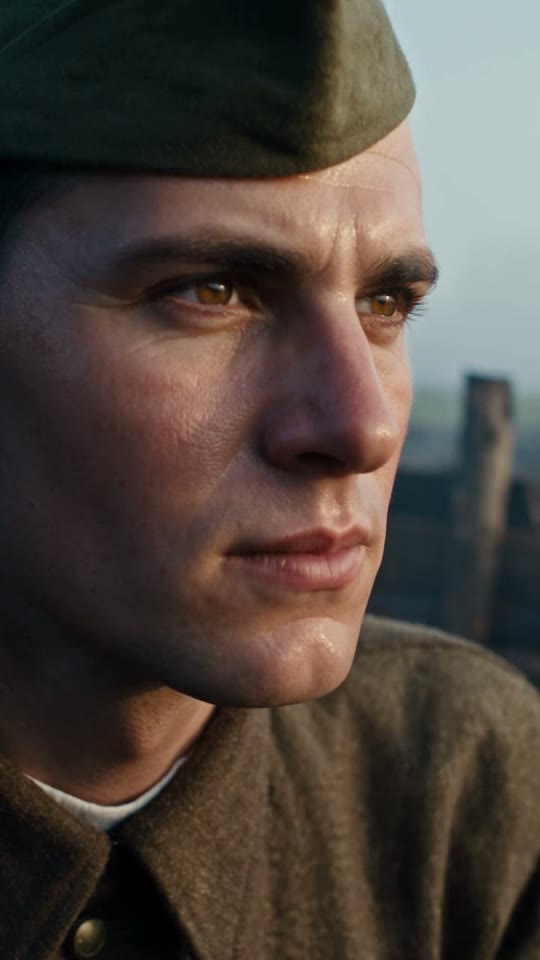
Grandpa at the Front. Sample made with Max.
Screen by screen
The whole trip,
in order.
What you see, what you tap, and what you get back.
- 01
First launch
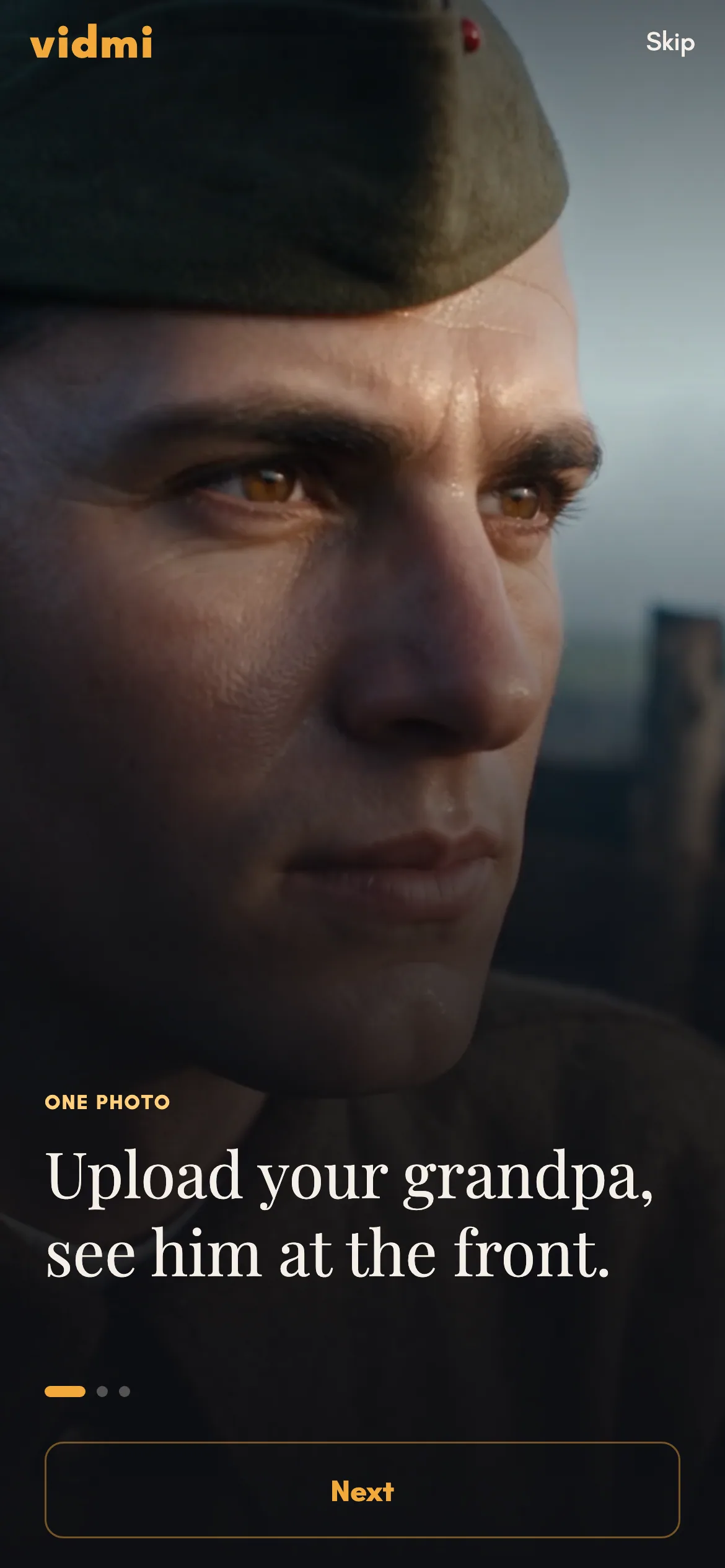
Three cards set the stage.
Each one plays a sample film behind a single line: “Upload your grandpa, see him at the front.” Swipe through or tap “Skip.” The last card ends on “Make my first film.”
- 02
Templates
Pick a scene.
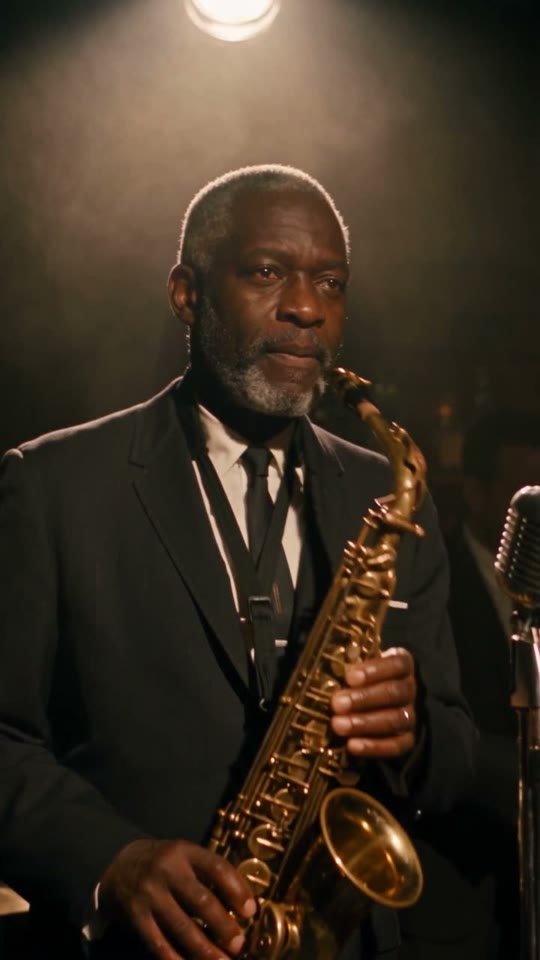
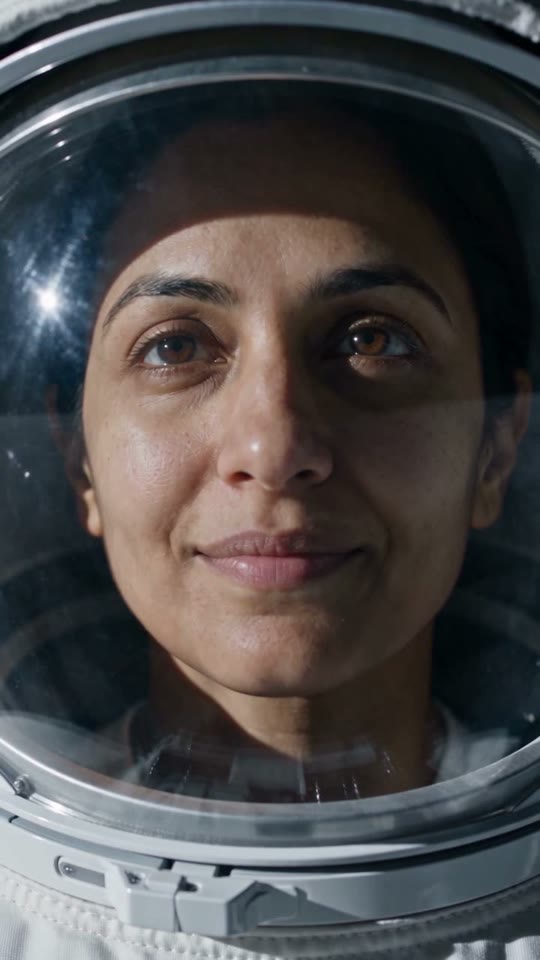
A grid of ready-made scenes, each playing its sample as you scroll. A trench at dawn. A smoky jazz bar. A walk on the Moon.
About scenes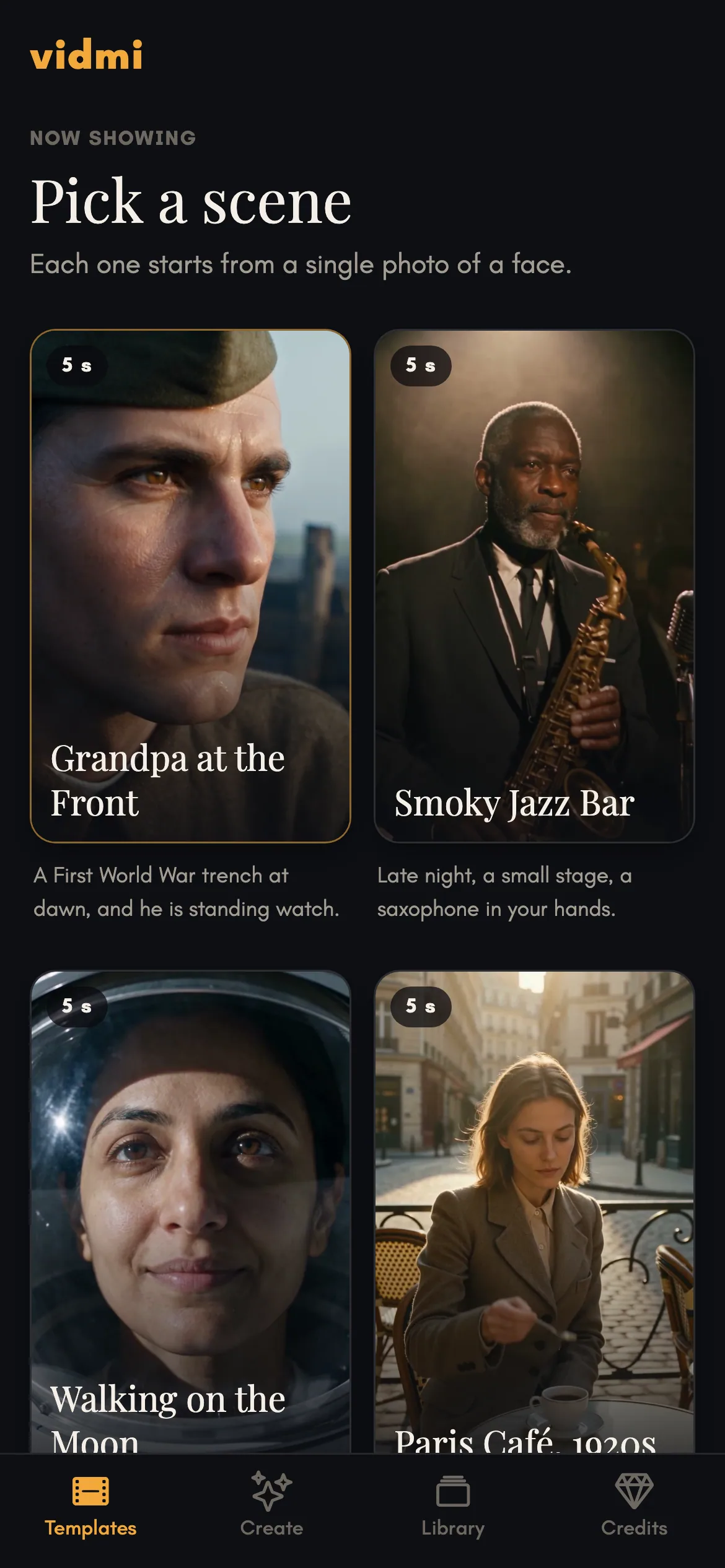
- 03
The scene screen
Watch first. Then make it yours.
Add your own touches in “Customise,” like a red scarf or falling snow. Switch on “Use this video as reference” to follow the sample’s camera moves and timing closely.
About reference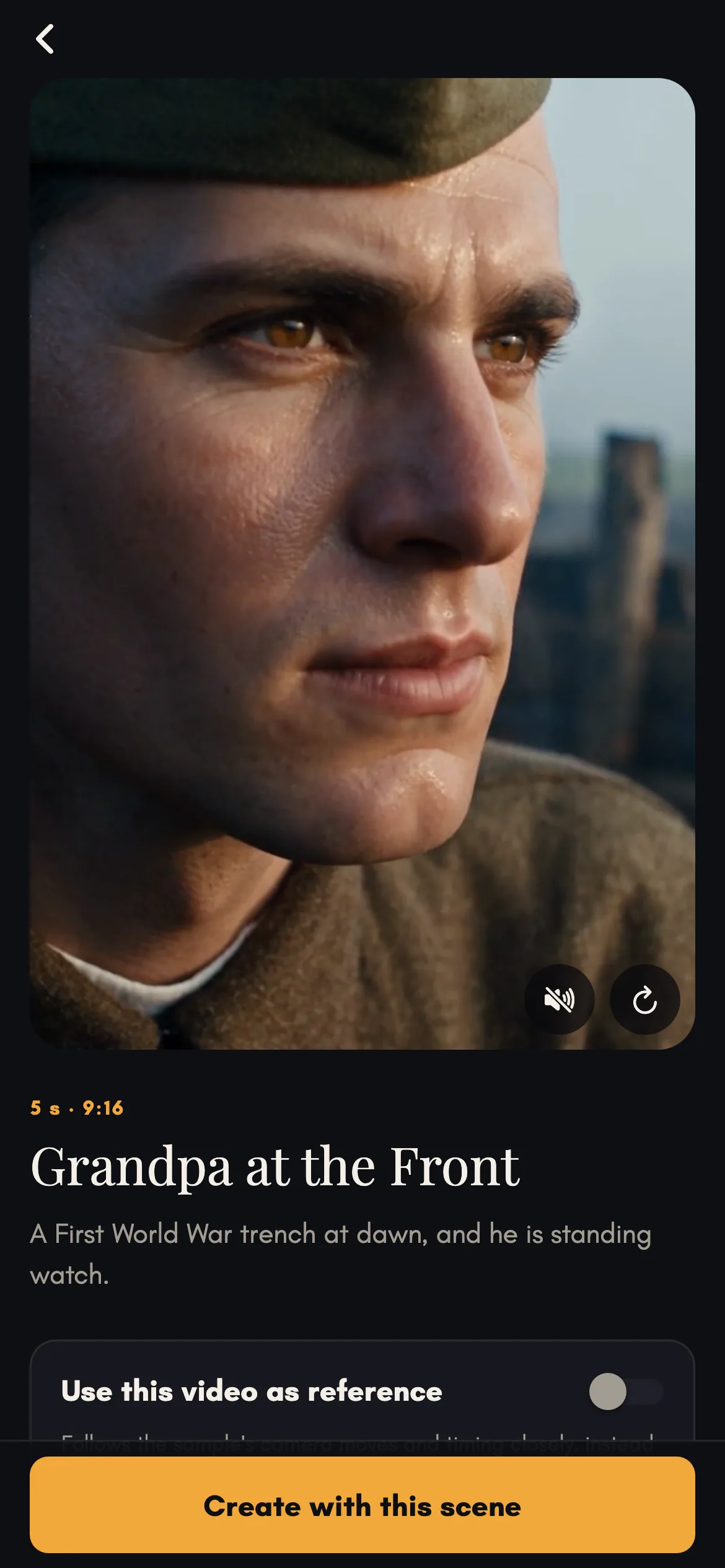
- 04
Create · Photo and scene
One face. One scene.
Add a photo from “Gallery” or “Camera.” One clear face, looking at the camera, good light. Keep your scene, or tap “Write my own instead” and say it in a sentence.
Write your own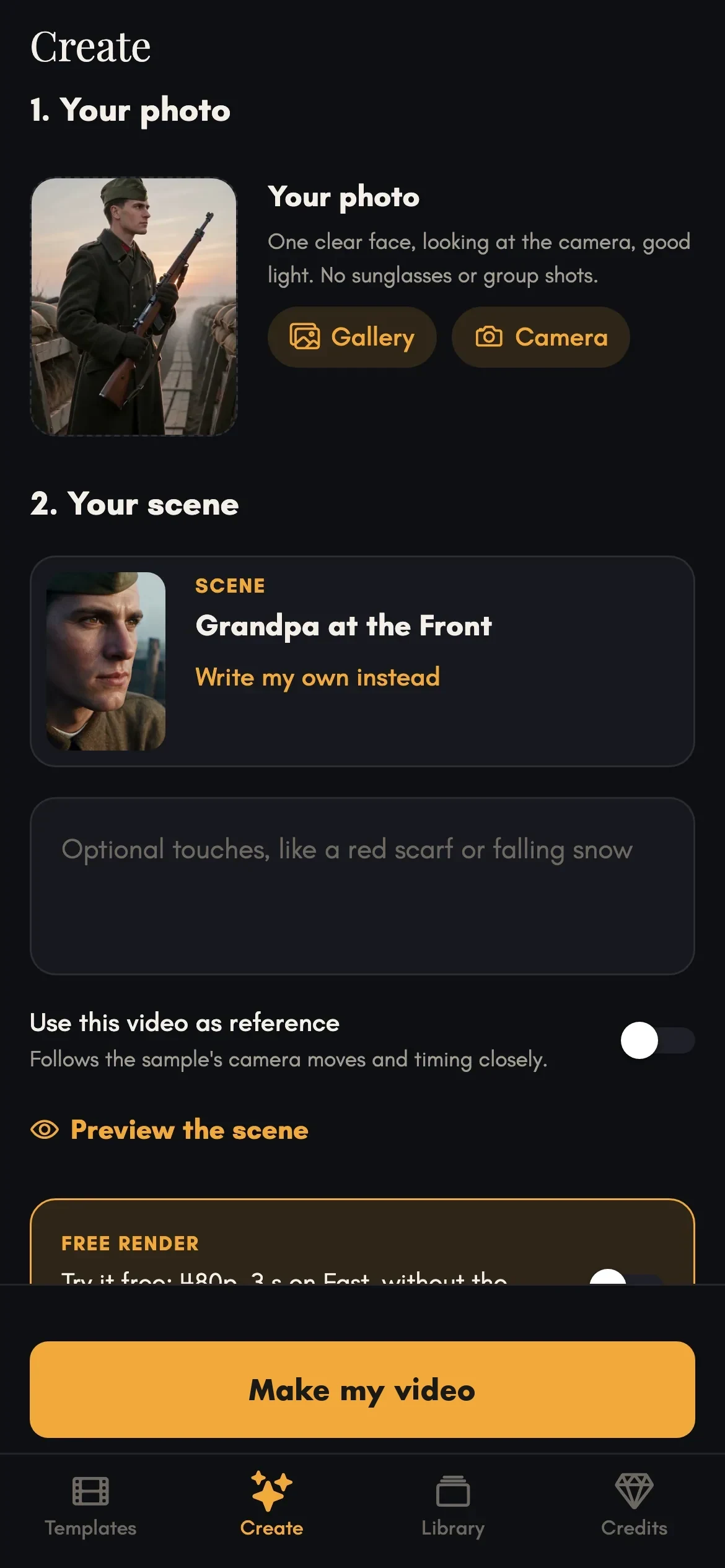
- 05
Create · Model
Fast, Quality or Max.
Fast is ready in about a minute and a half. Quality brings richer detail and steadier motion. Max is the most cinematic, with the best sound. “Preview the scene” tells you what your film will show before you spend anything.
Compare models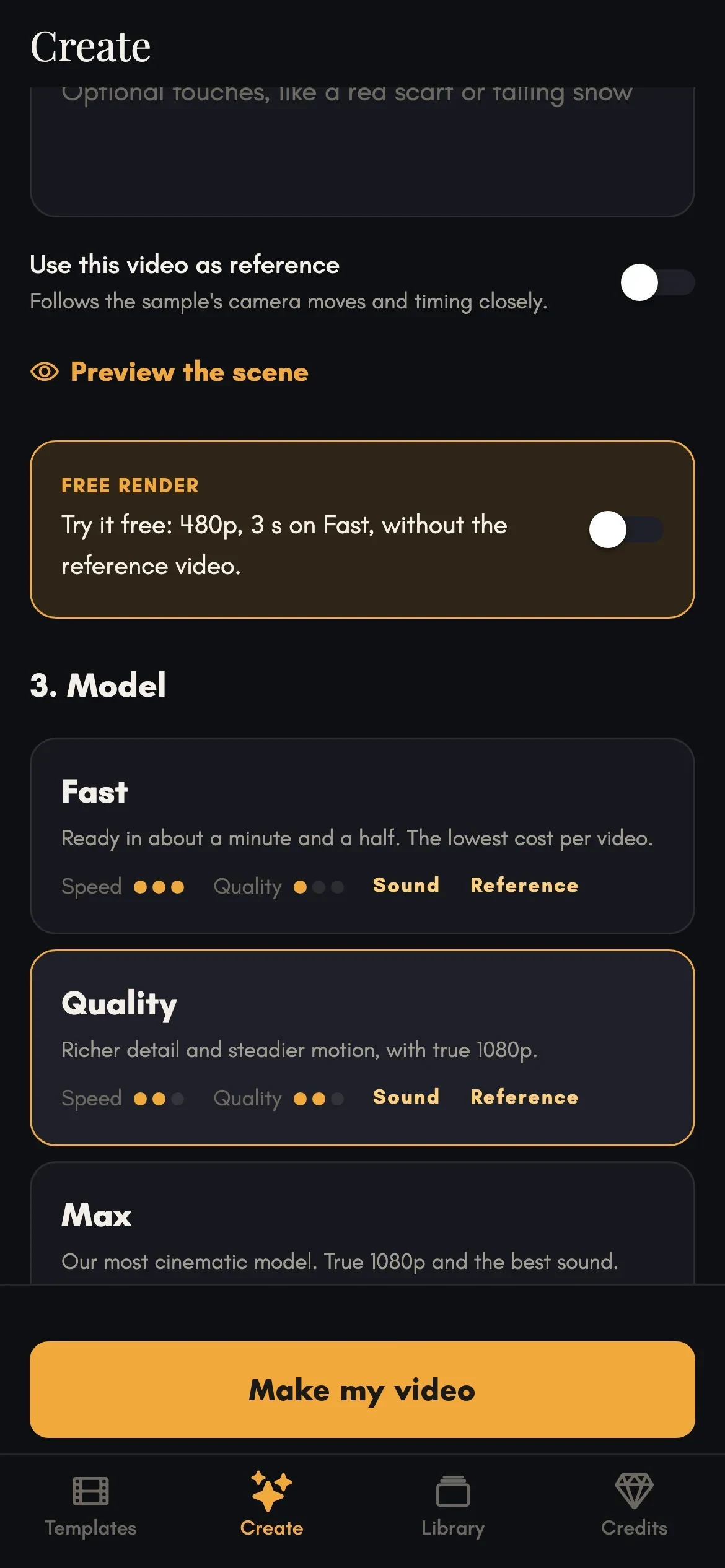
- 06
Create · Format
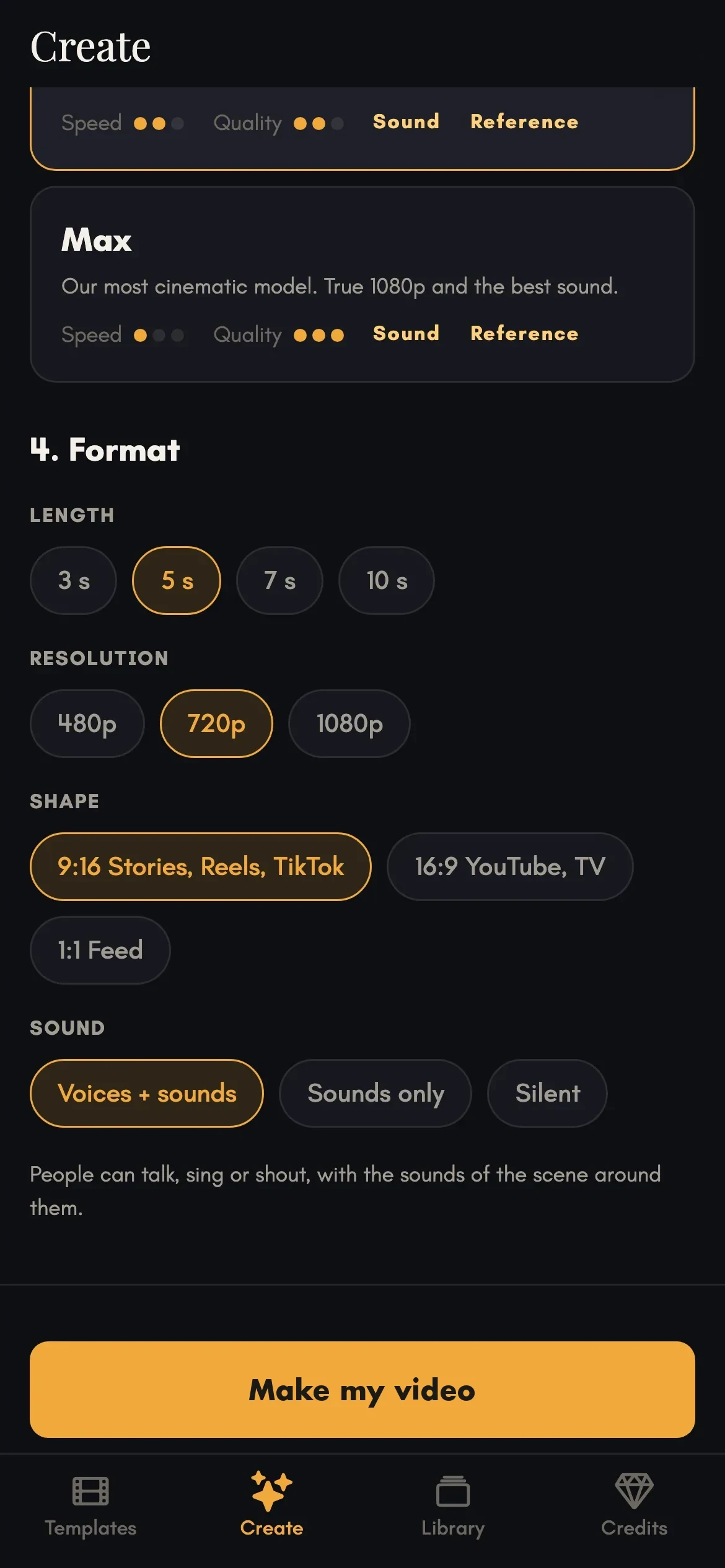
Length, shape and sound.
Four quick choices, then tap the button. It tells you what is missing, or what your film costs, before you make it.
- Length
- 3, 5, 7 or 10 s
- Resolution
- 480p, 720p, 1080p
- Shape
- 9:16, 16:9, 1:1
- Sound
- Voices + sounds, Sounds only, Silent
- 07
Making your video
Put your phone down.
A short Fast video usually takes 1 to 3 minutes. Bigger ones take longer. Leave the screen or start another, up to three at once. Then your iPhone says “Your video is ready.”
About alertsYour video is readyTap to watch and share it.nowMaking your video
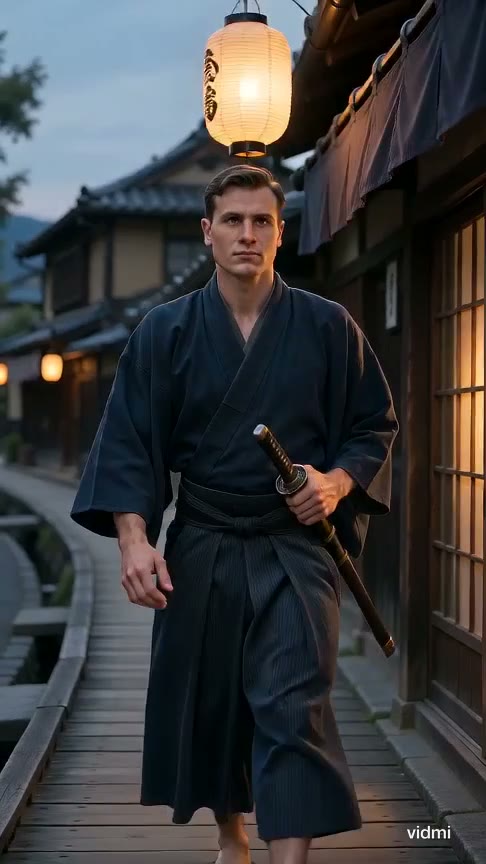
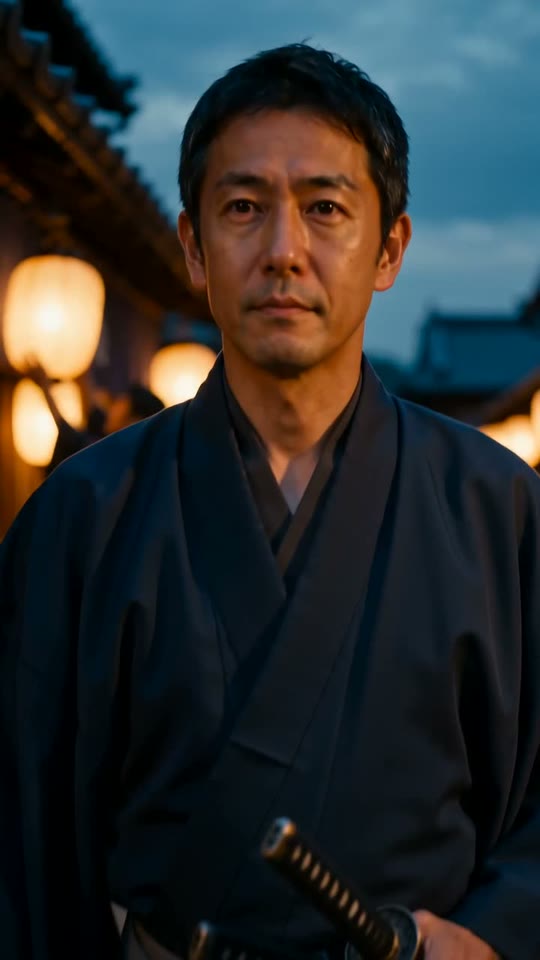 Samurai Street at Dusk5 s · 720p · 9:16
- Writing the scene
- Filming
- Finishing
Usually 1 to 3 minutes
You can leave this screen. We’ll notify you when your video is ready.
Make another - 08
Your video
Lights up. Share it.
Your film loops on screen, muted until you turn the sound on. Tap “Share,” “Save to Photos,” or “Make another” to film the same scene again.
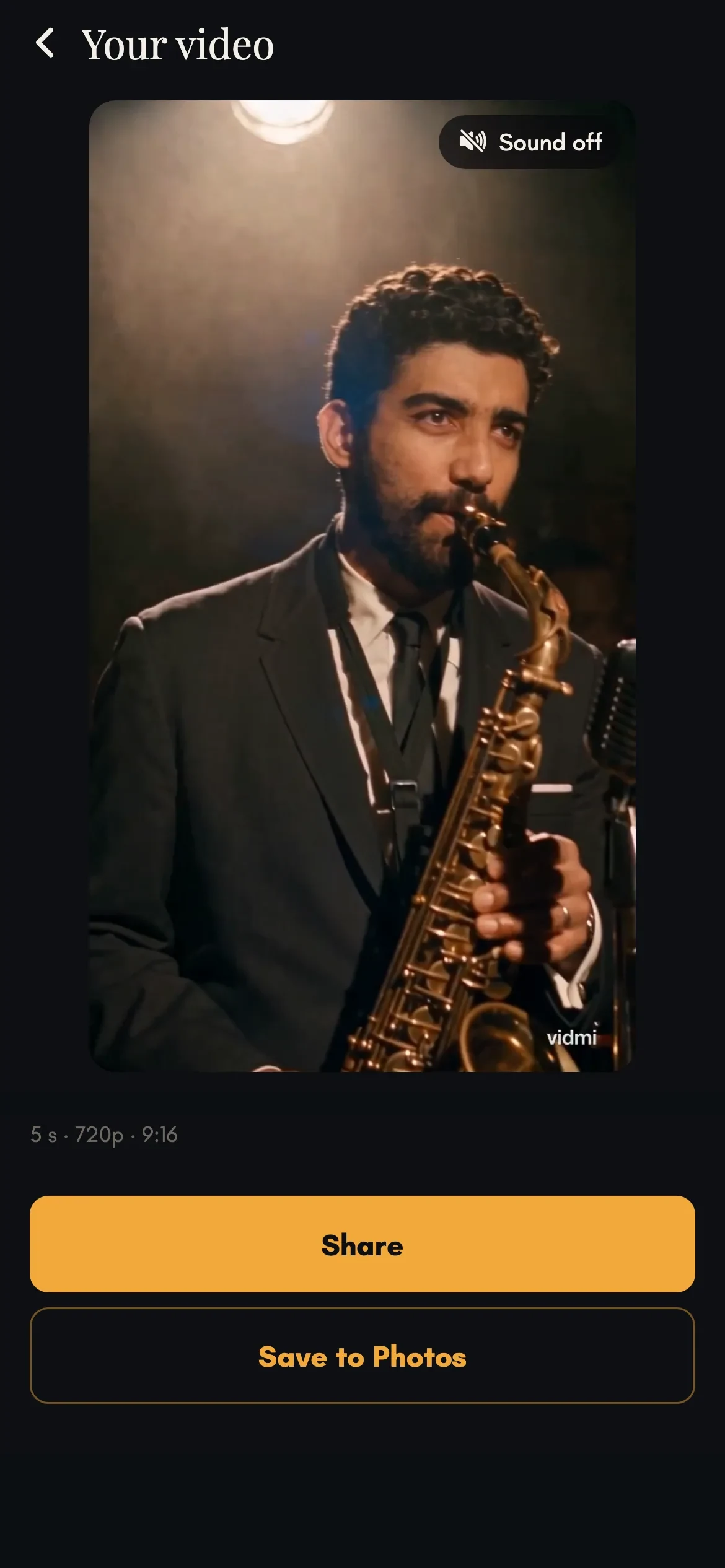
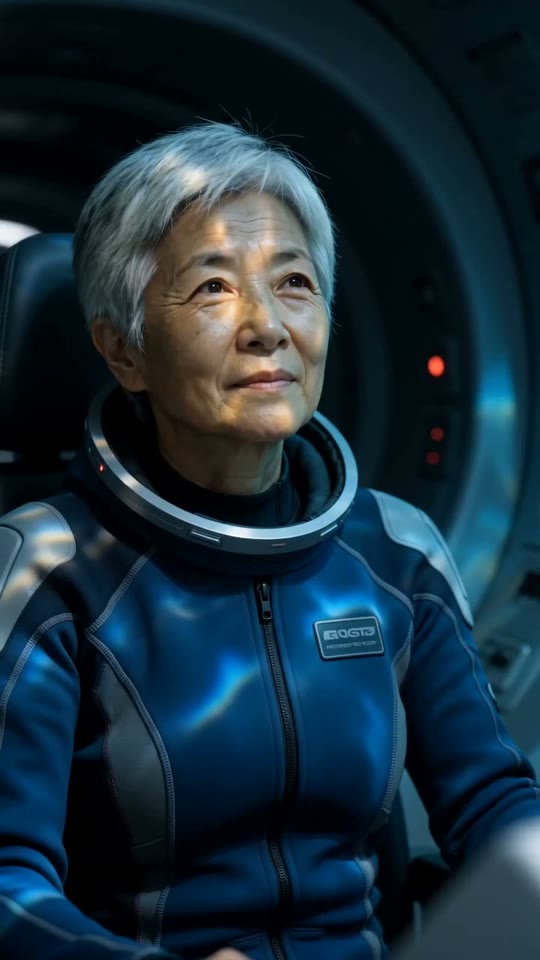
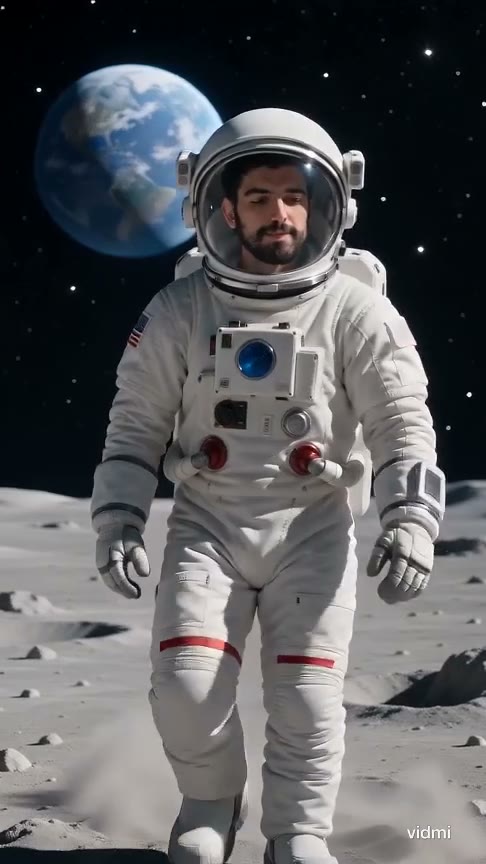
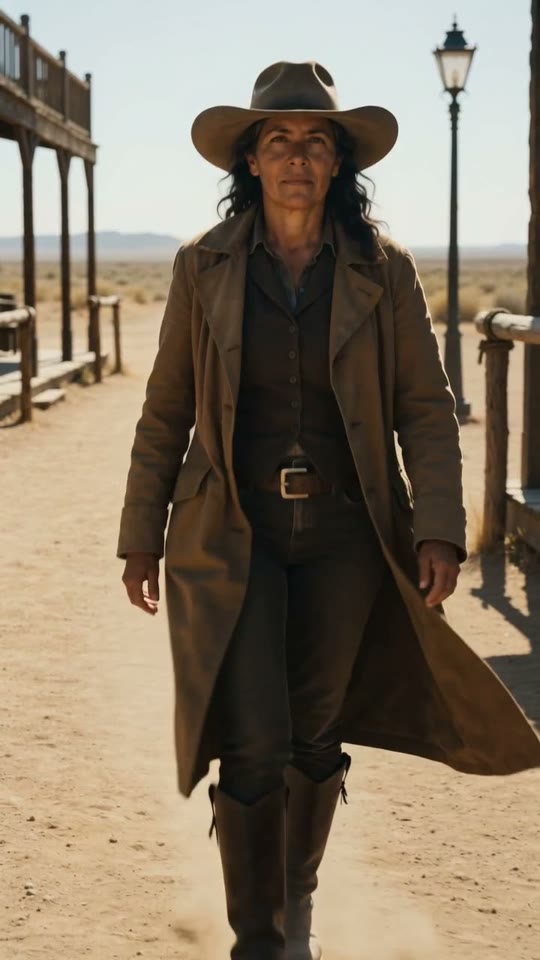
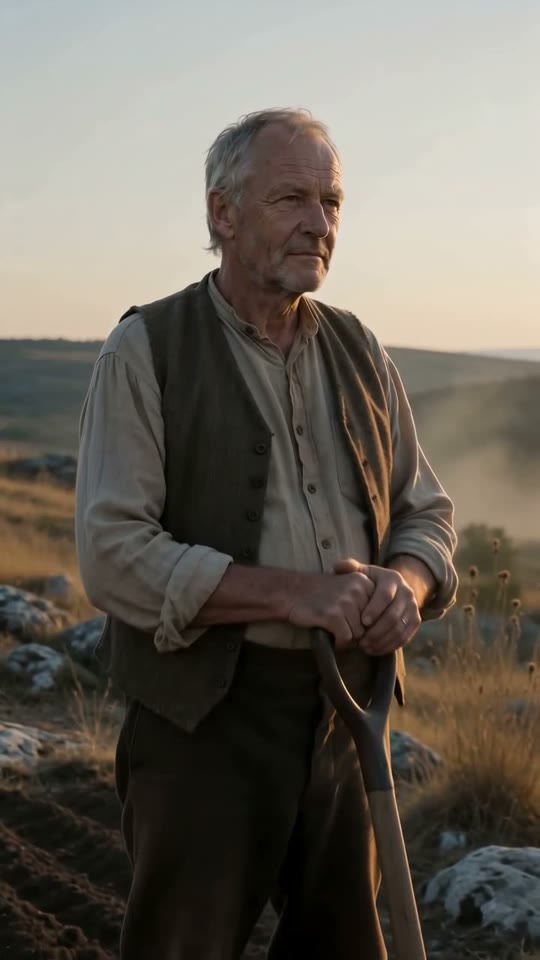
What comes out.
A short film starring the face in your photo. Vertical by default, ready for Stories, Reels and TikTok.


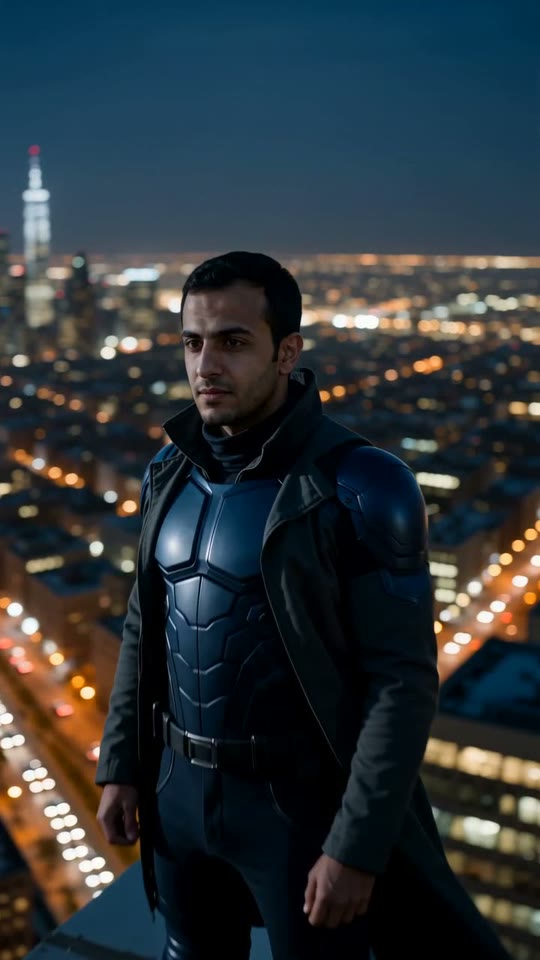
After the film.
Library
Every film, in one place.
Newest first, with status, length and resolution. Tap a finished film to watch, or one in progress to see how far along it is.
If a video fails
It comes back.
Failed videos are refunded automatically: “Your free render is back,” or your credits return to your balance.
If an idea can’t be made
You hear first.
The app tells you before anything is charged: “You haven’t been charged.” Try a different idea.
Before you start.
What do I need?
An iPhone, an internet connection and one clear photo of a face. No account, no email, no password.
Do I have to use a template?
No. Tap “Write my own instead” and describe your scene in your own words. Templates are there when you want a sample to start from.
What makes a good photo?
One clear face, looking at the camera, in good light. Skip sunglasses and group shots. Use photos you have the right to use.
Do I have to wait on the progress screen?
No. Leave it or start another. Turn on video ready alerts and your iPhone tells you when the film is done.
Can I change the look after?
Each video uses the options you set before you tap. Tap “Make another” to film the same scene again with a different model, length or sound.
Your scene is waiting.
Coming soon to iPhone: add one photo and pick a scene. Free to try.
For iPhone.