Use this video as reference
Use This Video as Reference: Follow a Sample's Camera Moves
In vidmi your photo gives the face and the scene's own sample video can set the camera moves and timing. It is the sample of the scene you picked, not yet a video you upload.
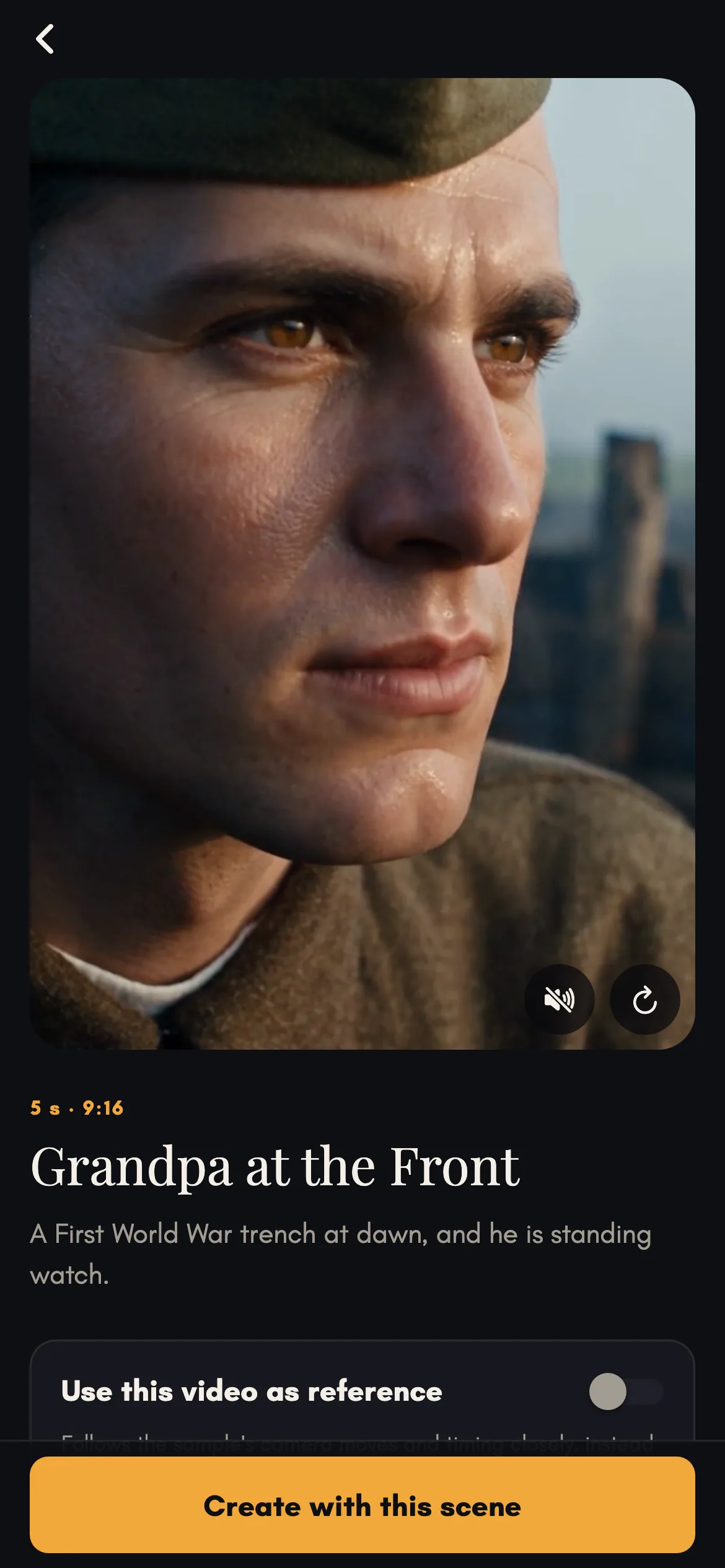
Reference to video AI, the vidmi way, works like this. You add one photo, and it supplies the face. You pick a ready-made scene, and its sample video can supply the camera moves and timing. The switch is called “Use this video as reference”, and the app puts it plainly: “Follows the sample’s camera moves and timing closely, instead of only its description.”
Two limits to know first. The reference is always the sample video of the scene you picked, not yet a video you upload. And vidmi is an iPhone app. The switch itself is on scenes only, it is off by default, it is not available on free videos, and it costs more credits than leaving it off.
What “Use this video as reference” does
Every scene template opens with a sample film. You watch it, you like it, and then you wonder whether your film will move the same way. This switch is how you make that more likely. You find it on the template screen, below the sample film and its description.
With it off, your film starts from the scene itself. Same place, same mood, same moment. The camera is free to find its own way through it.
With it on, your film also follows the sample’s camera moves and timing closely. If the sample’s camera drifts and then holds, expect yours to do much the same. Closely is the app’s word, and it does not mean frame for frame.
Either way, the face comes from your photo. The reference shapes how the shot moves, not who stars in it.
If you came looking for face swap with a reference video, this is the closest thing vidmi does today: your face goes into our scenes, and the scene’s sample sets the movement. Swapping a face into a video you upload yourself is not there yet. The face swap video page explains what vidmi does and does not do.
The same scene with the switch off and on
Take Grandpa at the Front. A trench at dawn, and he is standing watch.
Switch off. You get a dawn trench with your grandpa in it, framed and paced in its own way. Maybe the camera starts on the mud and rises to his face. Maybe it finds him already in close-up. Each film is a new take.
Switch on. You get a film that follows the sample’s camera moves and timing closely, now starring him. If you loved the way the sample moves, this is the version to make.
When to turn it on
Watch the sample once more and ask one question: did I fall for the place, or for the shot? If it was the shot, turn it on.
- You fell for one specific move. Say the Viking Longship sample has one camera move you cannot stop rewatching. That move is the film, and reference is what it is for.
- You are making a set. Three cousins, one template, Samurai Street at Dusk, one video each. With reference on, every film follows the same sample, so side by side they read as a series. Expect close relatives, not identical copies.
When to leave it off
- You want your own touches to lead. You love Rooftop Hero but picture it in pouring rain, with a long coat catching the wind. The sample is a starting point, not a script, so leave the switch off.
- You are still exploring. Choosing between Walking on the Moon and Deep-Sea Explorer is about the scene, not the camera. Try ideas with the switch off, and on Fast for the quickest look.
- You want a fresh take each time. Make Wild West Main Street with the switch off, then tap “Make another”. The second film can frame and pace the scene differently from the first.
How to use it, step by step
- Open the Templates tab and tap a scene.
- Watch the sample. Notice how the camera moves.
- Switch on “Use this video as reference”.
- Add your own touches if you like, then tap “Create with this scene”.
- Add a face photo, check your options, and make your video.
The switch works with every Model: Fast, Quality and Max.
Decide once per project. If a film is part of a set, settle the switch at the start and do not change it halfway, because mixing on and off is the quickest way to make a series look uneven.
| Your goal | Switch |
|---|---|
| Follow the sample’s camera and timing | On |
| A matching set of films | On |
| Your own touches take center stage | Off |
| Trying scenes before you commit | Off |
| A fresh take every time | Off |
What it costs and where it is not available
Turning the switch on costs more credits than leaving it off. The button on the Create tab shows the full cost in credits before you tap, and credits explains what changes the cost. A video that does not come out gives its credits back automatically, reference included.
The switch is not available on a free video, so the first film you make with it is one made with credits. It lives on template screens only: when you write your own scene, there is no sample to follow. Questions about the switch are answered in the reference video FAQ.
Reference and Customise together
The “Customise” box takes small touches like a red scarf or falling snow, and you can use it alongside the reference switch. With reference on, the sample leads the movement, so keep touches to details, such as:
- “a red wool scarf, light snow falling”
For bigger changes to the scene, leave the switch off and let the touches lead. See Customise for what to add.
Questions
Where do I find the switch?
On any template screen, below the sample film, its title and its description. It reads "Use this video as reference" and starts off.
Can I use it on a free video?
No. Free videos skip the reference option. Turn it on when you make a video with credits.
Does it cost more?
Yes, it costs more credits than leaving it off. The button on the Create tab shows the full cost in credits before you tap, so there are no surprises.
Can I use my own video as the reference?
Not yet. The reference is always the sample film of the scene you picked. vidmi starts from one photo, and today there is no way to upload a video.