vidmi for iPhone
iPhone is
coming soon.
vidmi turns one photo of a face into a short film. It is not on the App Store yet, and we won’t promise a date we can’t keep.
You are on the list. We will email you once, when vidmi is on the App Store.
- Try it free
- Account optional
- Credits or Pro
On a computer? Join the waitlist above, or save vidmi.ai/download. This page changes first when the app is out.
What you need
Three things.
You have them all.
-
An iPhone.
vidmi is made for iPhone, held upright.
-
A connection.
Films are made online, so you need the internet to start one.
-
One clear photo.
“One clear face, looking at the camera, good light. No sunglasses or group shots.”
Photos, camera and alerts are each asked for once, only when you need them.
Device requirementsThe first minutes
From day one
to your first film.
-
 1
Open it.
Three short cards, then one button: “Make my first film”.
-
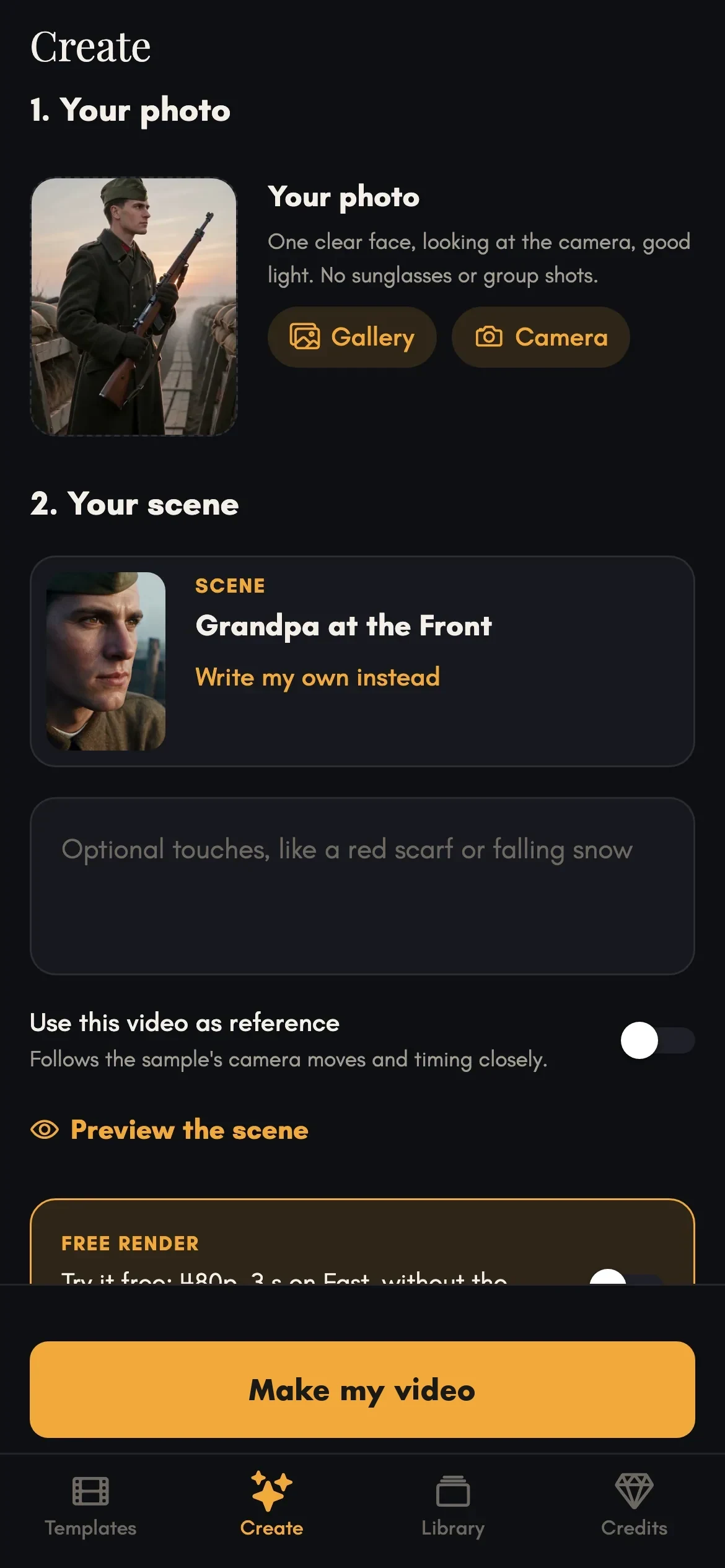 2
Add a face. Pick a scene.
From your gallery or camera. Choose a ready-made scene, or write your own.
-
 3
Watch it. Share it.
We tell you when it is ready. Share it in one tap, or save it to Photos.
Free to try.
Pay only for what you make.
Free
Try it free.
See your face in a scene before you spend anything.
Credits
No subscription.
Buy credits in the app through Apple. Every film shows its cost before you tap, and if one does not come out, its credits come back on their own.
No account
Nothing to sign up for.
vidmi never asks for your name, email or phone number. Your credits and Library stay on your iPhone.
Good to know.
Can I download vidmi yet?
Not yet. vidmi is coming soon to iPhone, and Android after that. This page changes first when it is out.
Do I need an account?
No. vidmi never asks for your name, email or phone number. Open the app and make a film.
Is there a subscription?
No. It is free to try. After that you buy credits in the app as one-time purchases through Apple, and pay only for what you make.
Does it work on iPad or in a browser?
vidmi is made for iPhone. There is no iPad version and no web app.
Where do my films go?
Into the Library tab on your iPhone. From there you can share them, or save them to Photos.