Library
Your vidmi Library: Watch, Save and Share Your Videos
Your videos land in the Library tab, newest first. It lists your 100 most recent, shows where each one is, and lets you watch, share or save it.
Your films, newest first
Open the Library tab and you see a grid of your 100 most recent videos, with the latest one at the top. Older videos are not deleted, they are just no longer listed, so save the ones you care about to Photos. Each card shows a still from the film, its length and its resolution. Free videos carry a small “free” label, so you always know which ones they were.
Before your first film, the tab is quiet: “No videos yet.” Then the app tells you how to fill it: “Pick a face photo and a scene. Your films show up here.”
See every film at every stage
A film is listed in the Library while it is still being made, not only when it’s done. Its card tells you where it is.
- “In queue”: your film is waiting its turn.
- “Writing”: the scene is being set.
- “Filming”: the shot is being made.
- “Finishing”: the last touches before it’s yours.
- “Ready”: tap to watch.
Tap a film in progress and you’re back on its progress screen. Tap a ready one and it plays. If you would like a nudge when one finishes, see video ready alerts.
You can have up to three films in progress at once. Start your grandfather in the trench, then yourself on the Moon, then a jazz solo in a smoky bar. All three show up in the grid, each moving through its own steps, while you get on with your day.
Watch it the way it was made
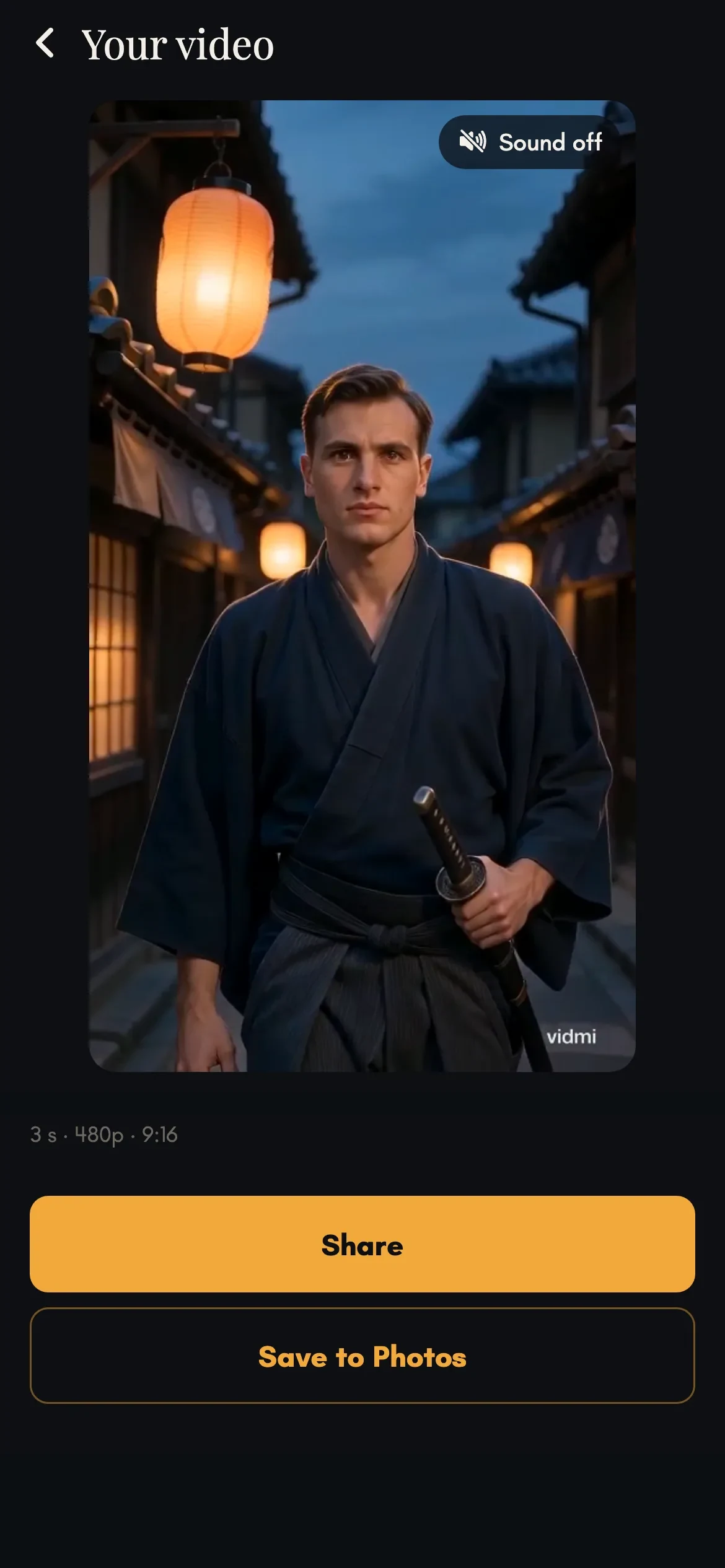
A ready film opens on the “Your video” screen and loops. It starts muted. Tap “Sound on” to hear the wind, the crowd or the voices you chose. Under the film you’ll find a one-line description of the scene and its details, written like “5 s · 720p · 9:16”.
Three buttons sit underneath:
- “Share” sends it to Messages, WhatsApp, Instagram, TikTok or any app on your phone. More on sharing.
- “Save to Photos” keeps a copy in your iPhone’s photo library. More on saving to Photos.
- “Make another” starts a new film with the same scene. Same moment, a fresh take.
When a film doesn’t come out
Now and then a film doesn’t work. Its card reads “Failed”, and when you open it, the app says so plainly: “This video didn’t come out.” A free video comes back as “Your free render is back.” A paid one returns its credits to your balance automatically.
Try a clearer photo or a different idea, and the next one goes in the grid like any other.
One iPhone, one Library
There’s no sign-up, so your Library belongs to the iPhone that made it. The rest of the app is covered in the vidmi iPhone app tour. For the ones you love most, save them to Photos, where they sit with the rest of your pictures.
The app has no delete option today. You can reach support at support@appquant.co, and Delete a video says what we can tell you. For a step-by-step walkthrough of every screen, see Using your Library.
Questions
Where do my videos go after I make them?
To the Library tab. A video you start is listed there while it is still being made, first with its progress, then ready to watch.
Do I have to wait on the progress screen?
No. "You can leave this screen." The film keeps going, its card in the Library shows how far along it is, and you can turn on alerts to be told when it is ready.
Can I see my Library on another iPhone?
No. There is no account, so your Library stays on the iPhone you made the films on. To keep a film anywhere else, save it to Photos or share it.
What happens to a video that fails?
Its card says "Failed", and the cost comes back automatically. A free video returns as a free video, and credits return to your balance.