Save to Photos
Save to Photos: Keep Your Video in Your Camera Roll
The film you made belongs next to the photos it came from. Tap "Save to Photos" and it lands in your iPhone's Photos app, ready to keep, trim or send.
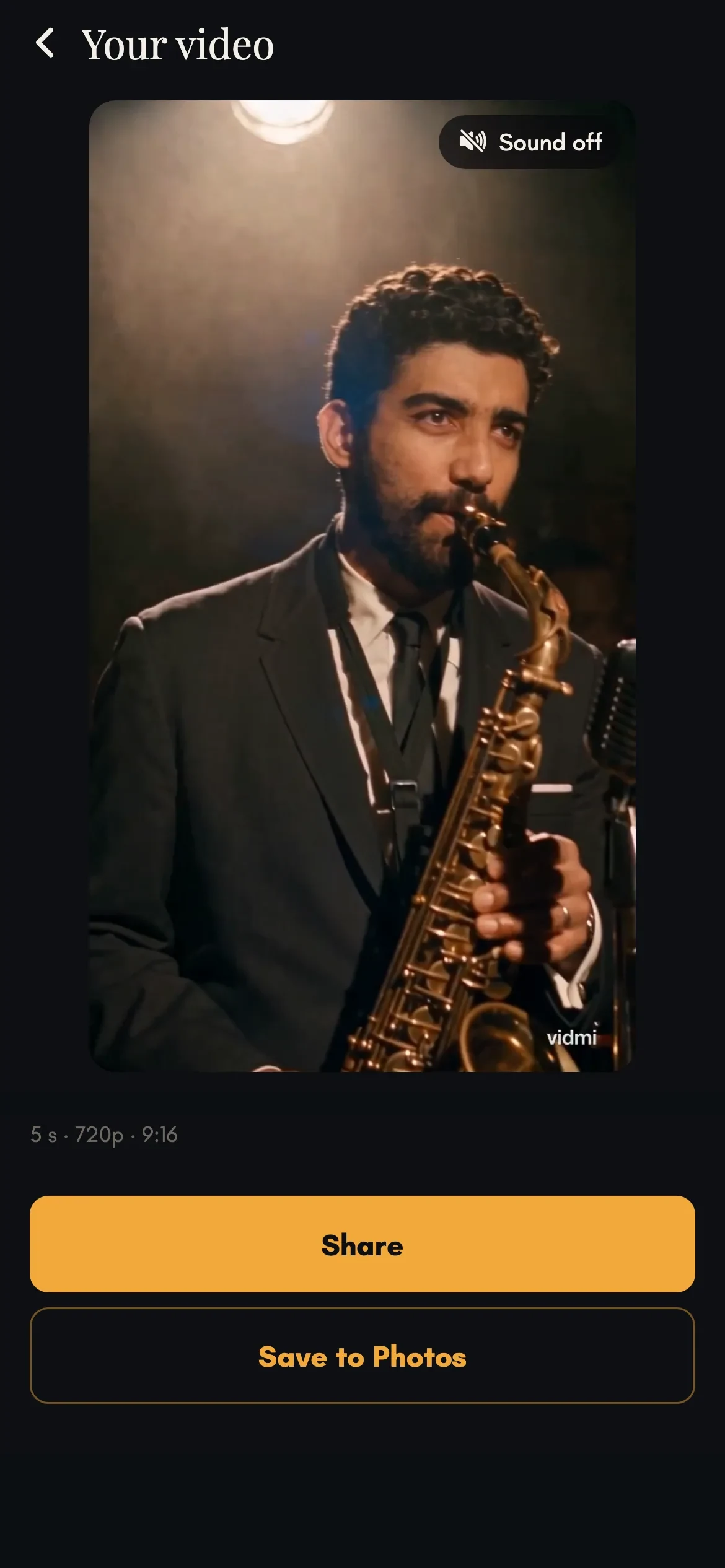
One button. Your camera roll.
On the “Your video” screen, “Save to Photos” sits between “Share” and “Make another”. Tap it and the film lands in your iPhone’s Photos app, in the same place as the videos you shoot yourself. Same shape, same length, same sound you chose when you made it.
The first time, your iPhone asks for permission to add to your photos. Say yes once, and every save after that is one tap.
Why it’s worth the tap
Some films are for a laugh in the group chat. Others are keepsakes. Your grandfather standing watch in a trench at dawn. Your mom on a Paris café terrace, coffee in hand. Those belong with the family photos, not just inside an app.
Your vidmi Library lives on the iPhone that made the films and lists your 100 most recent. Older ones are not deleted, only no longer listed. Photos is where you already keep the moments that matter, so that is where a keepsake should go.
What you can do once it’s in Photos
A saved film is an ordinary video on your iPhone. Everything Photos does with video, it does with yours.
- Trim it. Tap “Edit” in Photos to cut a beat from the start or end.
- Add it to an album. Put the film next to the old photo it came from. A “Grandpa” album can hold his portrait and his film side by side.
- Make it a favorite. Tap the heart so it’s always a swipe away.
- Edit it further. Open it in iMovie to join several films into one longer piece, or to add your own music. Our guide on editing in iMovie walks you through it.
- Send it anywhere. Photos can share to any app on your phone, just like vidmi’s own “Share” button. The sharing guides cover Messages, WhatsApp, Instagram and more.
Your Photos settings apply
Once a film is in Photos, it is an ordinary video in your library, and whatever your Photos settings do with your videos applies to it, including iCloud Photos if you use it.
Make a habit of it
A simple routine works well:
- Make a film.
- Watch it with the sound on.
- Love it? Tap “Save to Photos” before you do anything else.
If a film doesn’t land, skip the save and tap “Make another” to try a new take with the same scene. Your camera roll stays clean, and the keepers are one tap from saved.
If saving doesn’t work
One cause can be permission. If you said no the first time, your iPhone remembers. You can change it in your iPhone’s Settings under vidmi. Step-by-step fixes are in Save to Photos not working, and the basics are in How to save a video to Photos.
Want to find a film first? Start with your Library, which lists your 100 most recent. To send a film without saving it, use Share.
Questions
Does saving to Photos remove the film from my Library?
No. The film stays in your vidmi Library. Saving puts a copy in Photos as well.
Why does vidmi ask about my photos when I save?
Your iPhone asks before any app adds something to Photos. Allow it once and saving is a single tap from then on.
Will the saved video have the vidmi mark?
Yes. Every vidmi film carries a small mark in the bottom-right corner, and the copy in Photos is the same film.
Can I save a film that is still being made?
No. Wait until it shows "Ready" in your Library, open it, and the "Save to Photos" button is there.