Upload a YouTube Short
How to Upload an AI Video as a YouTube Short From iPhone
How to upload a YouTube Short from your iPhone: a vertical vidmi video is ready as it is. Save it to Photos, upload it in the YouTube app, and know when 16:9 fits better.
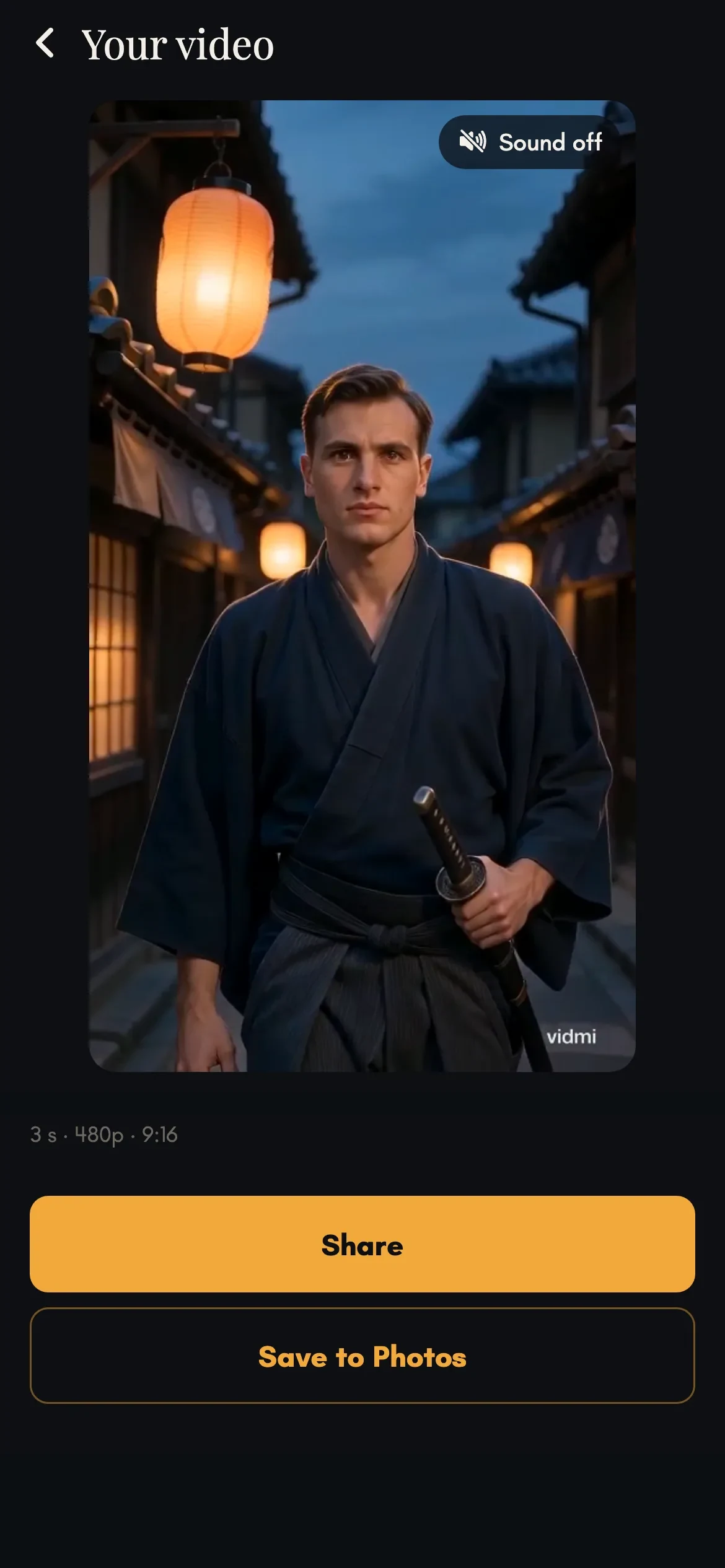
A vidmi video is already the right size for a YouTube Short: it is 9:16 by default and 3 to 10 seconds long, so there is nothing to resize or trim. You save it to Photos, then upload it from the YouTube app. The AI YouTube Shorts generator page shows what to make before you upload.
Make it vertical from the start
When you make the video, leave Shape on “9:16 Stories, Reels, TikTok”. That is the frame Shorts plays full screen, and it is vidmi’s default. “1:1 Feed” works as a Short too.
Pick 1080p under Resolution if you want the most detail.
Get the video onto your phone
Open the video in your Library and tap “Save to Photos”. Uploading from your camera roll works the same for any video, and it keeps a copy you can post anywhere else later.
You can also tap “Share” and choose YouTube if it appears in your share sheet.
Upload it as a Short
- Open the YouTube app and tap the plus button.
- Tap Create a Short, then the gallery icon in the corner, and select your video.
- Leave the length as is. Your video is already 3 to 10 seconds.
- Add text or a track if you want, then tap Next.
- Write a title, choose who can see it, and tap Upload Short.
The steps can shift a little as YouTube updates its app, but the shape stays the same: plus, pick, details, upload.
Write a title that says what it is
A Short’s title sits under the video, so make it plain.
Lead with the person and the scene, in plain words:
- “My grandpa at the front”
- “I played jazz in a smoky bar”
- “Walking on the Moon, starring me”
Skip hashtag piles. One or two that describe the video, like #history or #familyhistory, are plenty. Use the description for the story behind it: who is in the photo and why you made this.
Tell viewers it was made, not filmed
When you upload, YouTube asks whether your video contains realistic altered or synthetic content. A vidmi video shows a real face in a scene that never happened, so answer yes. YouTube may show viewers a short note.
It is the honest call, and it keeps a family video from being mistaken for archive footage. Read more in how to disclose AI content.
When a wide version makes sense
Shorts are for the scroll. A regular YouTube video is for the sit-down watch: a family channel, a history project, a tribute you’ll play on the TV at a reunion.
For that, make the video in “16:9 YouTube, TV” instead. Because one vidmi video runs 10 seconds at most, a wide upload works best as part of something longer. Make three or four scenes, say Grandpa at the Front, then Field at Dusk, and put them together in iMovie with a title card and music. Then upload it as a regular video.
Posting the same video to TikTok too? See how to post on TikTok. Not sure which shape to choose? This guide to shapes by platform and the shape options in vidmi lay it out side by side.
Before you post
Play the Short once in the YouTube app, sound on. Check that the face sits clear of the title and buttons at the bottom. The small vidmi mark stays in the bottom-right corner, as on every vidmi video. Then let it loop. For the full list of ways to send a video from your phone, see sharing from vidmi.
Questions
Will a 16:9 video show up as a Short?
Shorts are made for vertical and square video. A wide video goes up as a regular YouTube video instead. Make it in "9:16" or "1:1" if you want it in the Shorts feed.
Is a 3-second video too short for Shorts?
Three seconds is the shortest vidmi makes. A 5 or 7 second video has more room for a beat of setup and a beat of payoff before it loops.
Can I add music on YouTube?
Yes. The Shorts editor lets you add a track. It can help to make the video "Silent" so the music doesn't compete with voices.