Music guide
How to Add Music to a Video on iPhone With iMovie
To add music to a video on iPhone, make your vidmi film "Silent" or "Sounds only", save it to Photos, then put the song under it in iMovie or in the app where you post.
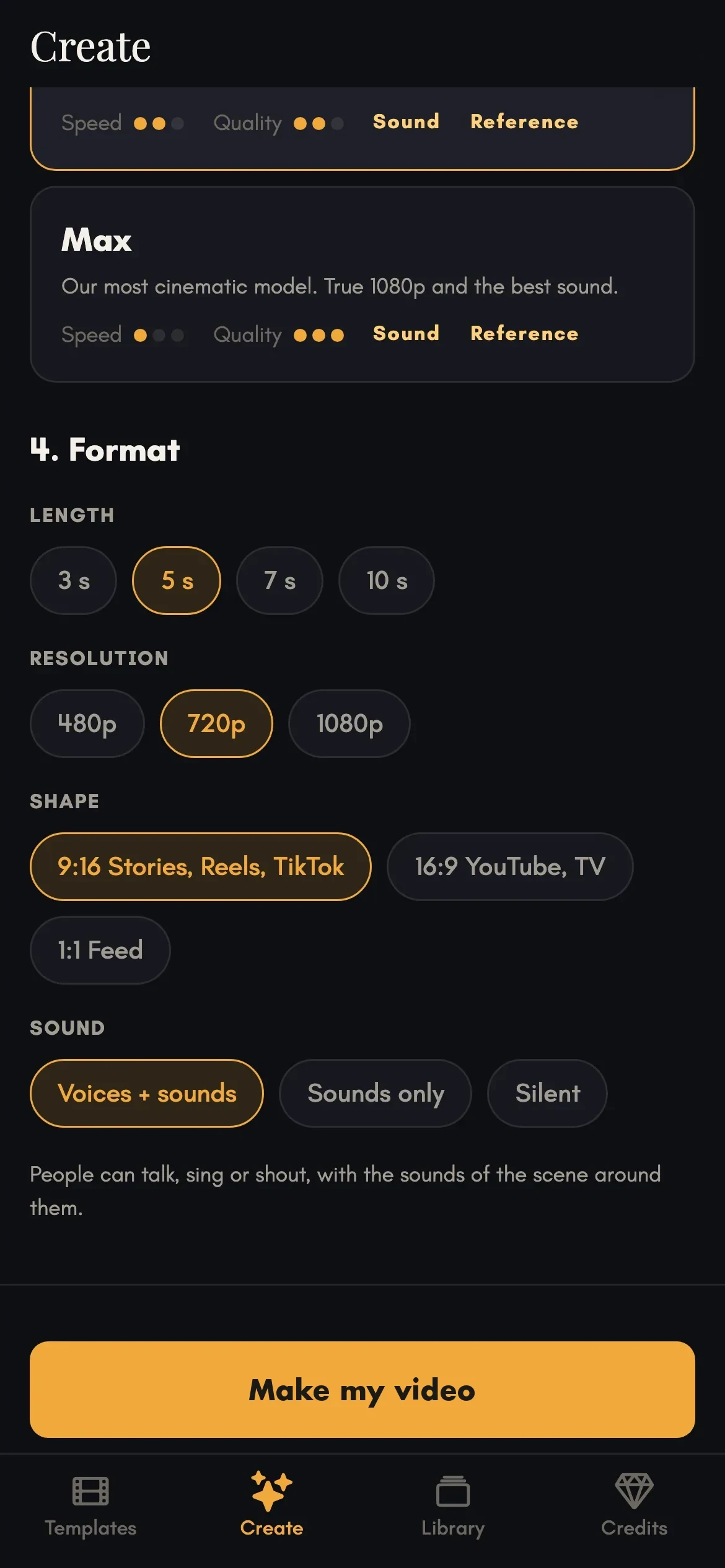
vidmi does not add songs. It has no music library and takes no audio file. So choose “Silent” or “Sounds only” under “Sound” when you make the video, tap “Save to Photos”, then add the song in iMovie or pick one in TikTok or Instagram when you post.
iMovie keeps the song in the file, and its movies are widescreen, so it suits a video made in “16:9 YouTube, TV”. For a tall 9:16 video, the music in the app where you post is the simpler route.
One line on rights: use a song the app offers for your post, or one you have the right to use.
Make the video quiet first: Silent or Sounds only
Music lands best on a film that leaves room for it. Before you make your video, open “4. Format” on the Create tab and look at the three choices under “Sound”.
- “Silent”: “A silent video, no sound track.” The cleanest canvas for a song.
- “Sounds only”: “Only the sounds of the scene: wind, crowds, engines, music in the room. No voices.” Keeps the texture of the place under your track.
- “Voices + sounds”: people can talk, sing or shout. Good on its own, but voices tend to fight with a song.
For a music edit, pick “Silent” or “Sounds only”. Everything else stays the same: your photo, your scene, your shape. Voices, sounds or silent explains each choice, and AI video generator with sound shows what the built-in sound can do if you would rather keep it.
Add a song in iMovie, step by step
iMovie is Apple’s free editor for iPhone. A song added there is saved into the video file, so it plays wherever you send the video. The names of its controls change a little between versions, so these steps say what each one does.
- In iMovie, start a new movie and choose your saved vidmi video from Photos.
- Tap the add button and choose audio.
- Pick one of iMovie’s own soundtracks, or an audio file on your phone that you have the right to use.
- If the music does not fit the video, tap it in the timeline and drag its edges to trim it.
- If you kept “Sounds only”, tap the video clip and lower its volume so the song leads.
- Tap “Done”, use the share button, and save the video. Photos now holds a second copy, with the song in it.
A tall 9:16 video may come out of iMovie cropped or with dark bars at the sides. Play the preview before you save, because the export looks the same.
This is also the way to put one song under several vidmi films in a row. Combine videos on iPhone with iMovie walks through it.
Add a song in the app where you post
The quickest route is the app you are posting to, and it leaves a tall video the shape it is.
- Open TikTok or Instagram, start a new post, and choose your vidmi film from your camera roll.
- Tap the sound or music option and search the app’s library.
- Pick the part of the song you want. You can usually slide along the song to the section you like.
- If you chose “Sounds only”, look for the volume controls and balance the video’s own sound against the song.
- Post.
The song belongs to that post, so a copy you send to a friend by message has none. Each app’s posting screen is covered in how to post on TikTok and how to post an Instagram Reel.
Match the song to the scene
A good pairing feels obvious once you hear it. A few to try:
- Grandpa at the Front with a slow, stately instrumental. “Sounds only”, so the sounds of the trench stay underneath.
- Walking on the Moon with something spacious and quiet. “Silent”, and let the song carry the whole thing.
- Smoky Jazz Bar with a saxophone record of your own choosing. “Silent” here, because “Sounds only” can include music in the room, and two tunes at once will clash.
Length matters too. A 10 second film has room for a line or two of a chorus. A 3 second film fits one hit of a beat.
Music rights, in plain words
A song belongs to the people who wrote and recorded it. Owning a copy, or streaming it, does not by itself give you the right to put it in a video you share.
- Inside a posting app: use the music the app offers for posts on that app. Rules can differ by account type, so read the app’s own terms if you post for a business.
- Editor soundtracks: iMovie comes with its own soundtracks to put under your videos. Apple’s terms say what they cover.
- Anything else: use it only if you made it, hold a license for it, or the owner offers it for reuse on terms that cover you.
This is a plain guide, not legal advice. If an app mutes or flags a post, the song is the first thing to check. Swap it and post again: your film is still in your Library, ready to share.
Before you post
Watch the finished video once with the sound on. Check that the song starts where you want it and that nothing is drowned out.
Your film carries the small vidmi mark in the bottom-right corner, with or without music. If you also want words on screen, add text to the video before you export.
Not made the film yet? Photo to video shows how it starts.
Questions
Can I pick a song inside vidmi?
No. vidmi has no music library and takes no audio file. You choose voices, scene sounds or silence, then add your song afterward in iMovie or in the app where you post.
Which sound setting is best for music?
"Silent" for a clean track with nothing underneath. "Sounds only" if you want the sounds of the scene to come through under the song.
Can I use any song I like?
Only a song you have the right to use. The music an app offers for posts in that app, or the soundtracks that come with an editor, are the simple places to start. Check the app's own terms.
Will the song stay in the file?
In iMovie, yes. The exported video carries the song everywhere. A song picked inside TikTok or Instagram belongs to that post.