Share
Share Your Video: One Tap Opens the iPhone Share Sheet
Your film is ready. Tap "Share" and the iPhone share sheet opens, so it goes wherever your people are, from a family group chat to your Reels.
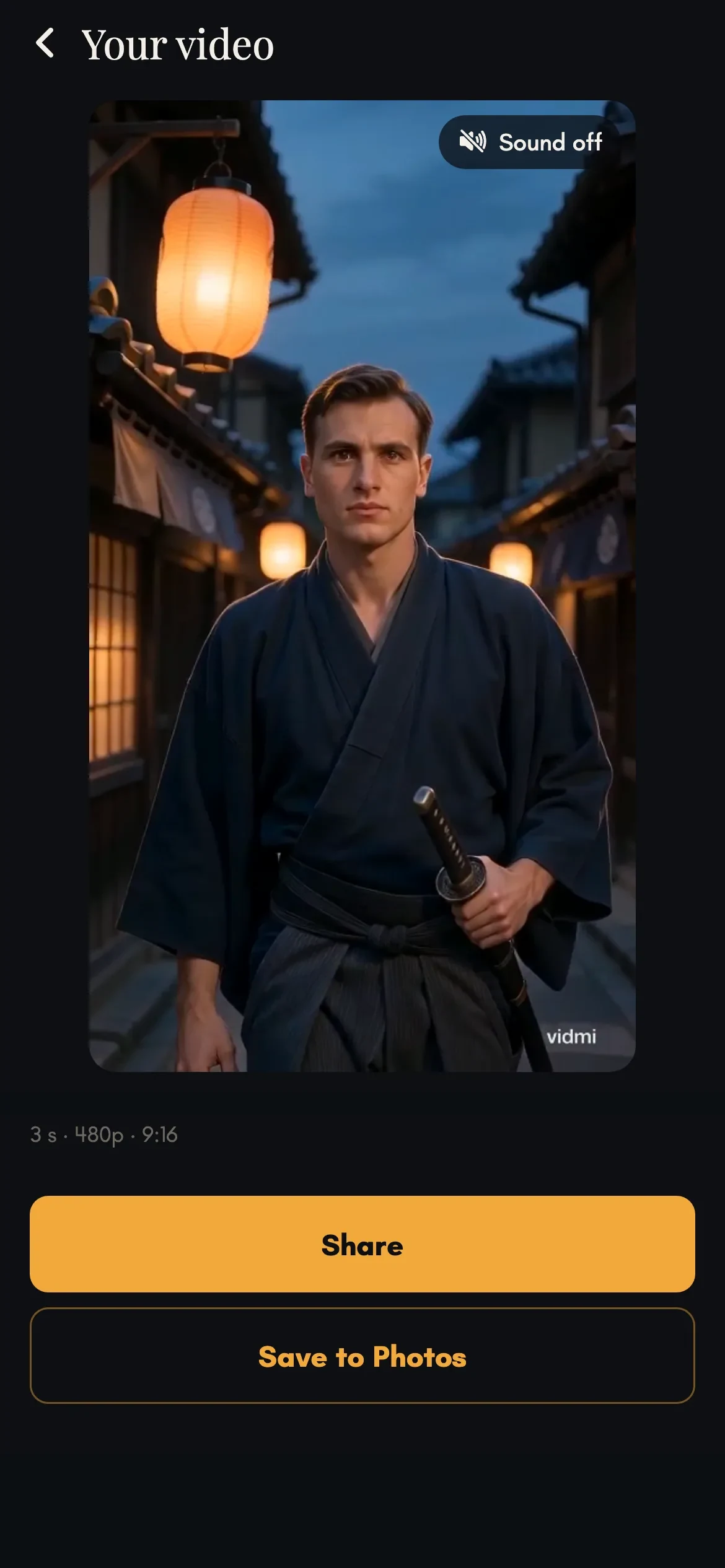
One button. Every app you use.
“Share” is the top button on the “Your video” screen. Tap it and the familiar iPhone share sheet slides up, with the usual ways to send things: Messages, Mail, AirDrop, and the apps on your phone, like WhatsApp, Instagram or TikTok. Pick one and the film is on its way.
There is nothing new to learn. If you have ever sent a photo from your iPhone, you already know how to send a vidmi film.
Send it to someone
Some films are made for one person. A film of your grandfather belongs in the family thread first.
- Messages. Drop it into a conversation and it plays right in the chat.
- WhatsApp. Send it to a group chat.
- AirDrop. Hand it to the iPhone next to you, no chat required.
- Mail. For the relative who reads everything in their inbox.
The film arrives as a video file the other person can play.
Post it for everyone
Other films are made for the feed. You at the prow of a Viking longship, mist rolling off the fjord, is a Story waiting to happen.
Choose your app from the share sheet and it can open with the film attached. From there, add your caption and post it the way you always do in that app. Each app has its own steps, so the video sharing guides cover them one by one.
Shape it before you share it
The best moment to think about where a film will live is before you make it. Under “Shape” in the Create tab, each choice tells you where it fits:
- “9:16 Stories, Reels, TikTok” fills a phone screen top to bottom. It is the default.
- “16:9 YouTube, TV” suits wide screens.
- “1:1 Feed” sits neatly in a square post.
Make the film in the shape of the place you are posting, and it is less likely to be cropped on arrival. Shape explains the three.
Share from your Library, any time
You don’t have to share the moment a film finishes. Finished films wait in the Library tab, newest first, up to your 100 most recent. Tap one to watch it again, then tap “Share” to send it to someone new.
Want a copy in your camera roll too? “Save to Photos” puts it alongside your other videos, so you can send it later from anywhere. See Save to Photos.
Before you post
Share films made from photos you have the right to use.
Still have a question about the share sheet? How to share a video walks through it step by step. To send a film by text, see sending a video through iMessage.
Questions
Do I share a link or the video itself?
The video itself. The person on the other end gets the film to watch, not a page to visit.
Does the shared film keep its sound?
Yes, if you made it with "Voices + sounds" or "Sounds only". The film plays muted in the app at first, but the sound travels with it.
Can I share a film that is still being made?
No. Once it shows "Ready" in your Library, you can send it.
Is the vidmi mark on the shared film?
Yes. Every film carries the small vidmi mark in the bottom-right corner, wherever it goes.