Photo Guides: Take, Scan and Choose a Face Photo
Every vidmi video starts from one photo of one face. These guides get you that photo, whether you are taking it now, scanning it or pulling it from something bigger.
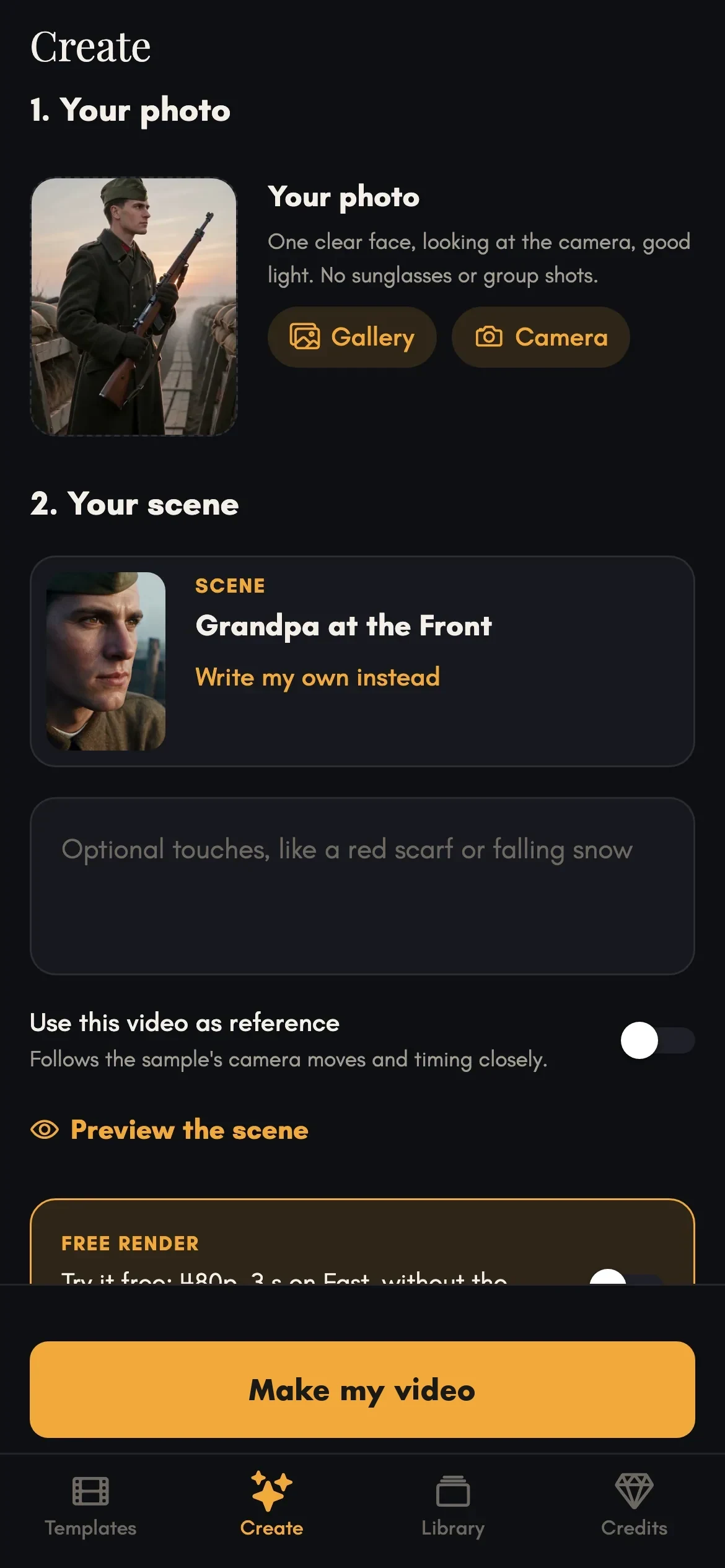
Start with one clear face
The app says it in one line under “1. Your photo”: “One clear face, looking at the camera, good light. No sunglasses or group shots.” Photo tips for AI video mostly come back to that sentence, and the guides below are ways of getting there.
Not sure which photo you already have is the right one? How to choose the best photo gives you a five-point check for the pictures already on your iPhone.
Looking for one person among thousands of pictures? The Photos app groups pictures by the person in them, which is the quick way to find every photo of someone on your iPhone.
If you are taking the photo now
A new photo often beats a compromise from the camera roll. Face a window, hold the camera at eye level and skip the filters. How to take a good selfie covers a photo of yourself. For a photo of someone else, the same window light and the back camera give you a headshot taken with an iPhone.
If the photo is a print or an old picture
Copy it with your iPhone, in soft light and without glare, and use the copy. How to scan old photos shows the steps.
Your film is a new scene starring the face in the print. It does not make the print itself move. What you get from an old picture is on the animate old photos page.
If the face is in a group photo or a video
vidmi takes a photo of one face, so you pick the person first. How to crop one person out of a group photo keeps the original safe, and the app also offers a crop when you pick the photo.
vidmi takes no video upload. If all you have is footage, pause it on a sharp frame in the Photos app, take a screenshot and crop it to the face. That is how you take a picture from a video.
When the photo is ready, turn the photo into a video. Use photos you have the right to use.
6 guides.
All guides- Ask before you animate someoneBefore you make or post a video of a friend or relative, ask. A short etiquette guide to consent and sharing.
- Choose the best photoHow to choose the best photo for an AI video: one clear face, even light, sharp eyes. A five-point check for the photos already on your iPhone.
- Crop one face from a group photoHow to crop a person out of a picture on iPhone: duplicate the group photo, crop to one face and shoulders, and keep enough detail for an AI video.
- Glasses, hats and beardsFace swap with glasses, a hat or a beard: what to expect in your video, how to avoid glare and brim shadow, and when to add an accessory as a touch.
- Scan old photos with your iPhoneHow to scan old photos with an iPhone and no scanner: soft window light, no glare, a straight angle and a tight crop. A clean way to digitize old prints.
- Take a good selfieHow to take a good selfie on iPhone: face a window, hold the camera at eye level, skip filters. Seven steps to a clear face photo for your next video.
One photo. Any scene. Your film.
Coming soon to iPhone: add one photo and pick a scene. Free to try, no account needed.
For iPhone.