Photo tips
How to Crop a Person Out of a Group Picture on iPhone
To crop a person out of a group picture on your iPhone, duplicate it and crop to one face and shoulders. This keeps one person; it does not remove someone and leave the rest. vidmi films that one face.
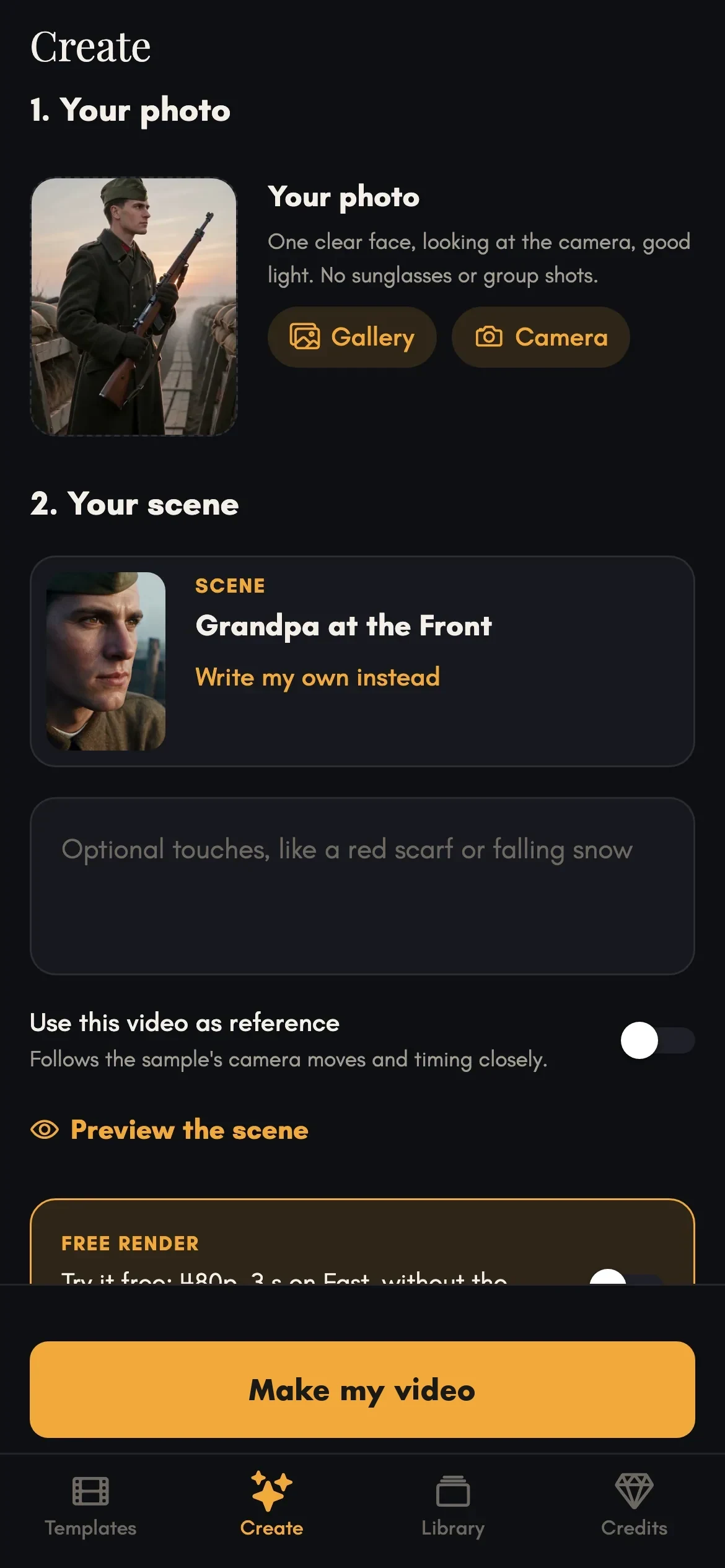
Some faces only live in group photos. The family reunion. The graduation row. The wedding where Grandma stood third from the left. vidmi films one face per video, and the app says so up front: “One clear face, looking at the camera, good light. No sunglasses or group shots.”
The fix is simple. Crop the photo down to the one person you want to keep, then use that. The rest of the group is cut away, not edited out.
Pick the sharpest face
Before you crop, look at every photo you have of that person. Zoom in on each one. You want the face that is:
- Largest in the frame. More of the photo devoted to the face means more detail after the crop.
- In focus. Group shots can be focused on the middle of the row, and someone at the edge can be soft.
- Looking toward the camera. A face turned to talk to a neighbor does not match the app’s tip.
- Clear of other people. No shoulder, hand, or second face overlapping theirs.
If the only copy is a printed photo, scan it first. Scan Old Prints With Your iPhone shows how to get a sharp, glare-free copy.
Duplicate first
Keep the full group photo untouched. In the Photos app, open the picture, tap the More button (the three dots), and choose Duplicate. Now you have a copy to crop, and the original stays as it was.
Crop on iPhone
- Open the duplicate and tap Edit.
- Tap Crop.
- Drag the corners in until only one person remains. Leave a little room: the head, the neck, and the top of the shoulders.
- If you can, choose a portrait shape. Tap the aspect button and pick a tall ratio, or simply crop taller than it is wide.
- Tap Done.
Not happy with it? Open the photo, tap Edit, then Revert to start over.
Leave enough detail
Cropping makes a photo smaller. A face that fills a thumbnail in a group shot may not hold up on its own.
A quick test: after cropping, view the photo full screen. If you can see the eyes clearly, with no blocky edges, you’re in good shape. If the face looks smeared, go back and find a photo where the person was closer to the camera.
Crop to the face and shoulders, not tighter. A crop that cuts through the chin or forehead leaves less of the face to work with.
Make the film
Open vidmi, go to the Create tab, and under “1. Your photo” tap “Gallery”. Choose your cropped copy. You can adjust the crop again as you pick it.
Then choose a scene. For a grandparent from an old wedding photo, Field at Dusk and Paris Café, 1920s are two scenes to try. Or write your own, like “my grandma at a garden party in the 1950s, laughing in the sun”. Either way it is a new scene starring that face; the old photo itself does not move.
For more on putting a family face into a new scene, read Turn an Old Family Photo Into a Film. New to vidmi? Start with photo to video.
If vidmi can’t find the face
A tighter, sharper crop is the first thing to try. If the app still can’t find a face, the person may be too small, turned away, or in shadow. This help article covers what to try next, and How to Choose the Best Photo has the full list of what makes a photo work.
Questions
Can I keep everyone from the group photo in my film?
No. A vidmi film starts from one photo of one face. The app's tip says "No group shots", so crop to the one person you want to see.
Will cropping ruin my original photo?
Not if you duplicate it first. Edits in the Photos app can also be undone later with "Revert".
My crop looks blurry. What now?
Look for another photo where that person is larger in the frame, or scan the print again, flat and sharp, before you crop.