Hanukkah
Hanukkah AI Video Greeting for the Family
A happy Hanukkah video from one photo of one face: a 3 to 10 second candlelit scene you write in a sentence. Made on an iPhone, free to try.
A greeting that glows
A Hanukkah text is nice. A five-second film of your grandmother at the window, candles lit beside her, is a different kind of greeting.
vidmi is an iPhone app that makes a video from one photo of one face: a candlelit scene, 3 to 10 seconds long, and free to try. It is not a ready clip to forward. However your family spells it, Hanukkah or Chanukah, you write the night yourself in one sentence.
Three limits to know first. Each video stars one face. It cannot show a written greeting. And nobody in it can say a blessing or a line you choose. The film carries the light, and the message you send with it carries the words.
Start with one face
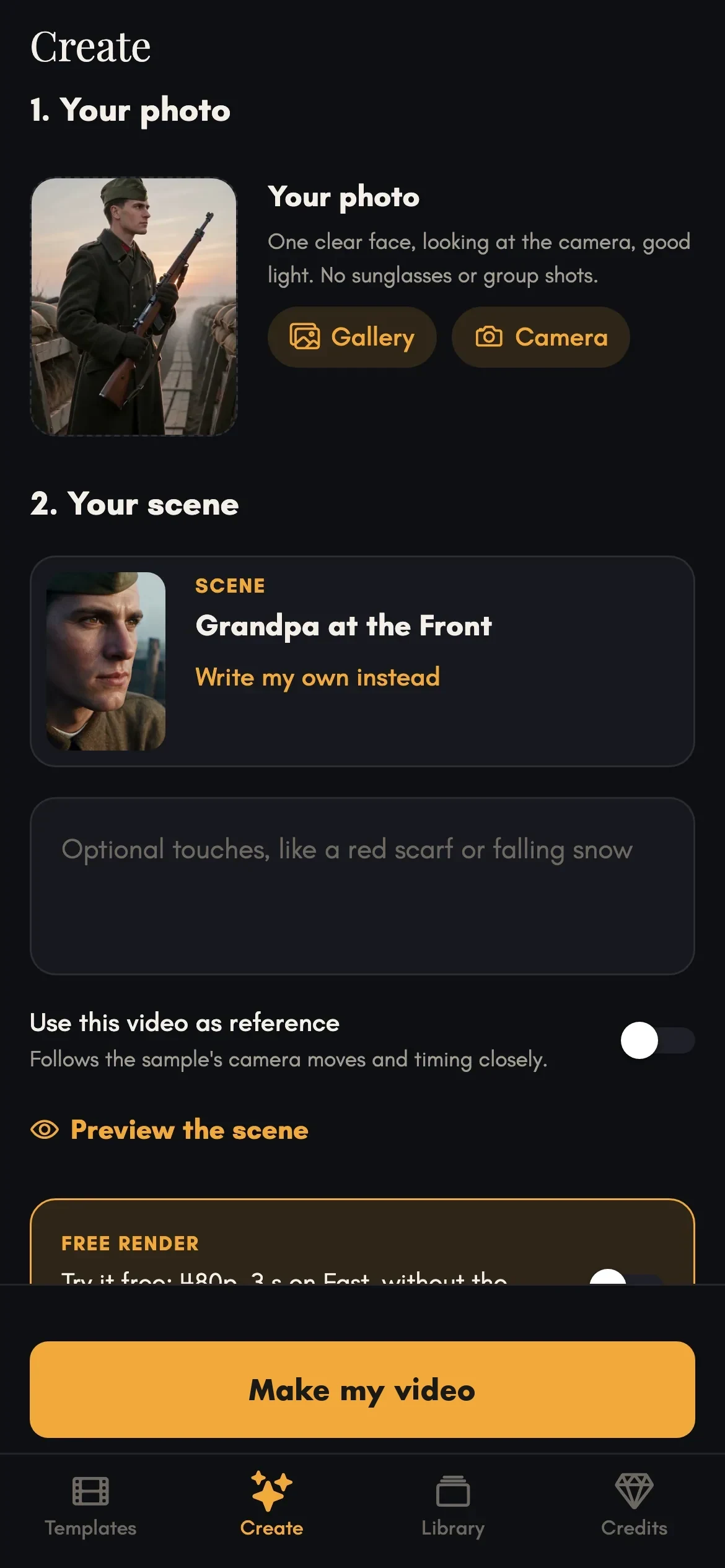
Open the Create tab. Under “1. Your photo”, pick one from “Gallery” or take a new one with “Camera”.
The app’s own tip is the right one: “One clear face, looking at the camera, good light. No sunglasses or group shots.”
That last part matters at the holidays. The group picture from last year’s party will not work. A plain portrait of one person will.
Write the night in a sentence
In “2. Your scene”, tap into “Describe your scene in your own words” and type what you would want to see. Name the person, the place, and the light.
Scenes you could type:
- “my grandmother at the kitchen window beside the lit menorah, snow falling outside, warm candlelight on her face”
- “my dad at the stove flipping latkes in a cast iron pan, steam rising, the menorah glowing on the counter behind him”
- “me spinning a dreidel on a wooden table, candles burning low, gold coins scattered around”
- “my grandfather in his armchair on the eighth night, every candle lit beside him, smiling at the flames”
If the night matters, say so: “the fourth night, four candles and the shamash lit”. Treat it as a request. Count the candles in the finished film before you send it, and make it again if they are off.
Want to check the scene first? “Preview the scene” shows you, in words, what the film will show. Read it, adjust your sentence, and only then make the film.
Let the candles do the lighting
Candlelight is the whole look of this holiday, so put it in your sentence. Words like “warm candlelight on her face”, “the room dark except for the flames”, or “soft glow from the window” say where the light comes from.
Keep it to one light source and one mood. A candlelit kitchen and a bright snowy street are two different films. Pick one.
The lighting words guide has more phrases to borrow.
Choose the sound of the room
Under “Sound” you have three choices, so check which one is selected before you make the film.
For most Hanukkah scenes, “Sounds only” is the gentle one: the sounds of the room, with no voices. “Silent” works when you plan to send the film with your own message underneath.
“Voices + sounds” adds people talking or singing in the scene. You do not pick what they say, so save it for a lively kitchen and skip it for a blessing. The three choices are laid out in voices, sounds, or silent.
Eight nights, eight short films
You do not have to make one big greeting. Try a small one each night.
Night one is Grandma at the window. Night two is Dad and the latkes. Night three is your sister with the dreidel.
Each film is 3 to 10 seconds, so nobody has to sit through anything.
If you are new, the app says it plainly: “Try it free: 480p, 3 s on Fast.” Three seconds of candlelight is enough to see whether your sentence works. After that, you buy credits in the app and pay only for what you make.
Send each one
When the film is done, a “Your video is ready” notification tells you, if you allowed alerts. Tap “Share” to open the iPhone share sheet and drop it into the family group chat, with your greeting typed underneath. Or tap “Save to Photos” and keep it with the rest of the holiday pictures.
Films are vertical by default, so they fill a phone screen. Sending to relatives who watch on a TV? Choose “16:9 YouTube, TV” under “Shape” before you make it.
For the step-by-step, see sending a video by text in iMessage.
Make it welcome at every table
Families keep Hanukkah in different ways, and plenty of households share more than one tradition in December. A few habits keep a greeting warm for everyone who opens it.
- Describe the holiday the way your family keeps it: the kind of kitchen, the shape of the menorah, the food on the table.
- Keep the scene gentle. Light, food, and one person at home carry the meaning without any extra drama.
- Use photos you have the right to use.
If your house also sends a Christmas greeting, that one has its own page: an AI Christmas video.
Sending one greeting to the whole list instead of eight? Our video Christmas card guide is written around Christmas, but its steps for choosing who stars in it, the shape, and the send work for any holiday. vidmi for families has more ideas for the rest of the year.
Questions
Is there a Hanukkah template?
No. The ready-made scenes are places like a jazz bar or the Moon. For Hanukkah you write your own scene in a sentence.
Can everyone in the family be in the same video?
No. Each film starts from one photo of one face. For a family, make one short film per person and send them across the eight nights.
Can the video show "Happy Hanukkah" as text?
No. vidmi does not add text or captions to a video. Write the greeting in the message you send with it.
Can the person in the video say a blessing or a greeting I choose?
No. With "Voices + sounds" people in the scene can talk or sing, but you cannot set the words. For a quiet candle scene, "Sounds only" or "Silent" usually fits better.
Whose photo can I use?
Use photos you have the right to use. One clear face, looking at the camera, in good light works best.