Make it better
AI Video Didn't Come Out Right? What to Change Next
To fix a bad AI video in vidmi, name what feels off, change one thing and make it again. This guide gives you the one change to try next for the face, the scene, the motion, the mood and the frame.
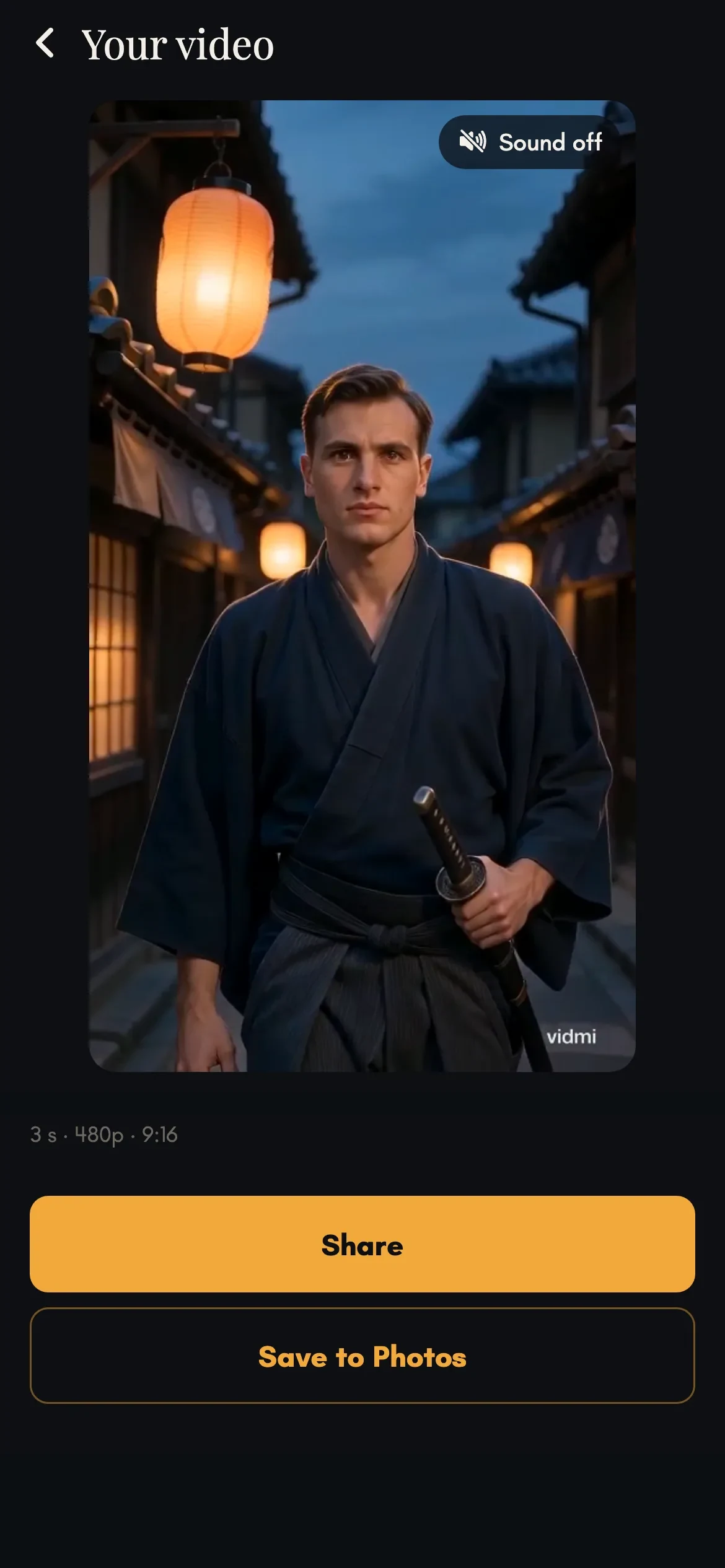
This guide is for a film that finished but does not look the way you pictured. vidmi has no editing timeline: you cannot adjust a finished video, only make a new one. “Make another” starts a new video with the same scene, so each try changes just one thing.
Nothing here guarantees a perfect likeness or the exact scene you imagined. It suggests one change to try for each kind of miss. If you are just starting out, turning one photo into a video shows the whole path.
Start by naming the problem
“It didn’t work” is hard to fix. “His face looks younger than it should” is easy. Watch your film twice, once with sound off, and say in one sentence what is wrong.
Almost every miss falls into one of five places: the face, the scene, the motion, the mood, or the frame. Find yours below. Then change one thing, and only one, so you know what made the difference.
The face doesn’t look like them
Start with the photo. The film starts from the face you add.
- Blurry or dark? Use a sharper, brighter shot. Daylight near a window is a good place to take it.
- Turned away? Pick a photo where they look at the camera. A side angle shows only part of the face.
- Sunglasses, a hat brim, a hand on the chin? Choose one where the face is clear. The app’s tip says it best: “One clear face, looking at the camera, good light. No sunglasses or group shots.”
- Cropped from a group? Crop closer, so one face fills the frame.
If the photo is already good, try a different one of the same person. Two equally clear photos can give two different films. The full photo checklist lives in when the person doesn’t look quite right, and how to choose the best photo goes deeper on picking one.
The scene missed your idea
The setting is wrong, or something you asked for never showed up. Try fewer words before you try more.
- Say one moment. “Me on a rooftop at night” plus a car chase plus fireworks plus a dog is four films. Pick the one you want.
- Lead with the place. “A misty fjord at dawn, my dad at the prow of a longship” puts the place first and the person in it.
- Name things you can see. “Lanterns, wet stones, an old wooden street” is something you can picture. “A beautiful atmosphere” is not.
Before you spend again, tap “Preview the scene” and read what the film will show. If it reads wrong, reword and preview again. For the full craft, see how to write a scene in one sentence.
On a template, the same rule applies to “Customise”. One touch, like “a red scarf” or “falling snow”, beats a list of five.
The motion feels off
The camera wanders, or the movement looks unsteady.
- Switch to Quality or Max. Quality is described in the app as “Richer detail and steadier motion”. If you drafted on Fast, this may be enough. See Fast, Quality and Max.
- Borrow the sample’s camera. On a template, turn on “Use this video as reference”. Your film then follows the sample’s camera moves and timing closely.
- Ask for one movement. “Slowly turns to look at the camera” gives a short clip one clear thing to do. A run, a jump and a wave all in one short film are too much for the few seconds you have.
The mood is wrong
The film looks right but feels flat. Mood lives in light and sound.
- Add light to your sentence. “At dusk”, “by candlelight” or “under a cold blue moon” can change the feel of a film. Lighting words has more to borrow.
- Change the sound. Voices in the background can crowd a quiet moment. Try “Sounds only” for wind, engines and the music in the room, or “Silent” for a film you will set to your own song later.
- Try Max. In the app it brings “True 1080p and the best sound” and the most cinematic result. It takes the longest.
The frame is wrong for where it goes
The film looks cut off on your TV, or small in the middle of a feed. That can be the shape you chose, not the film.
- “9:16” for Stories, Reels and TikTok.
- “16:9” for YouTube and the TV.
- “1:1” for the feed.
If it looks soft on a big screen, make it again at 1080p. Aspect ratio by platform shows which shape goes where.
Try again without starting over
On the “Your video” screen, tap “Make another”. It starts a new video with the same scene, so you change only the thing you named above: the photo, a few words, the model, or a setting.
While you test, Fast is the lowest-cost model, so it suits trying a change to the photo or the words. Once a change works, make the final version on the model and length you want. Your earlier tries stay in the Library, which lists your 100 most recent videos, so you can compare them.
When it didn’t finish at all
If the app says “This video didn’t come out”, the video failed after it started. Your credits or free try come back automatically. See My Video Failed for what to do next.
Questions
My video says "This video didn't come out". Is that the same thing?
No. That is a failed video, and your credits or free try come back automatically. This guide is for films that finished but don't look the way you pictured. The help article on failed videos covers what to do next.
Can I edit a finished video?
There is no editing timeline in vidmi. You make a new version instead. "Make another" starts a new video with the same scene, so you only change what needs changing.
Will a better photo guarantee a perfect likeness?
Nothing guarantees a likeness. The photo is the part you control most, so start there, with one clear, well-lit face looking at the camera, as the app's own tip says.